
Codex Setup Guide
This guide shows how to install OpenAI Codex on Windows and macOS, then connect it to PrimeRouter. After setup, Codex requests go through PrimeRouter and use your PrimeRouter token, balance, logs, and billing rules.
Scope
This page is for the guided setup flow on Windows and macOS. For manual config.toml editing, see OpenAI Codex CLI.
Prerequisites
| Item | Description |
|---|---|
| Windows or macOS | Windows 10 / 11 or a recent macOS release is recommended |
| PrimeRouter account | Sign up at primerouter.ai |
| PrimeRouter token | Create one at Console Tokens, usually starting with sk- |
| Codex installer | Download it from the official OpenAI Codex page |
Download Setup Scripts
| System | Download | Command |
|---|---|---|
| Windows | Download PowerShell script | powershell -ExecutionPolicy Bypass -File .\codex.ps1 |
| macOS / Linux | Download Shell script | bash codex.sh |
Safety note
The scripts write ~/.codex/config.toml and ~/.codex/auth.json. Existing config files are backed up first. You can download and inspect the scripts before running them.
Coming from another provider? The scripts reuse the model_provider id this machine already had, so your codex resume history stays visible. Set PRIMEROUTER_CODEX_PROVIDER_ID=primerouter before running if you prefer a clean id.
Windows Flow
1. Download and install Codex
Open the OpenAI Codex page in your browser.
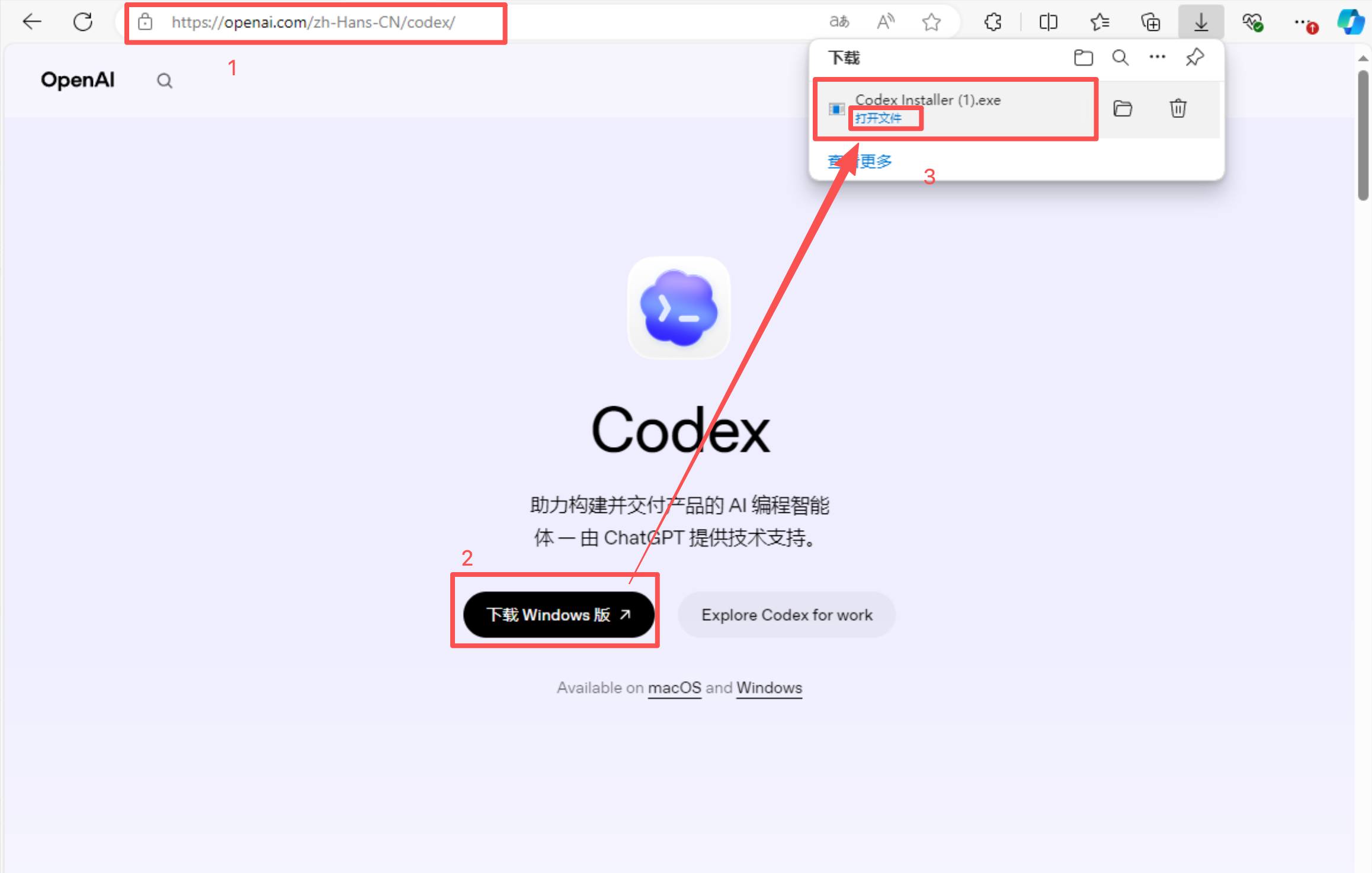
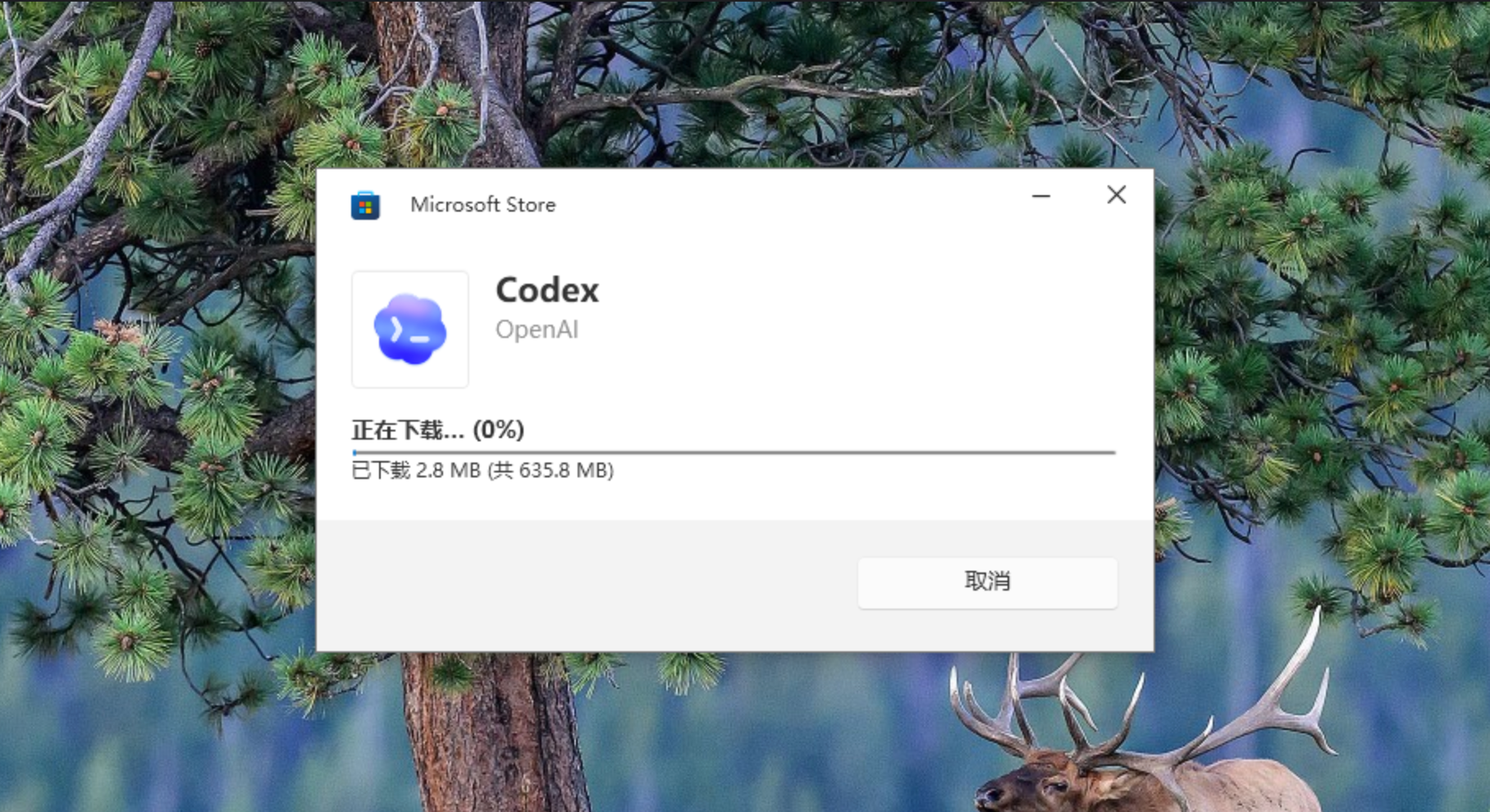
Open the downloaded installer. Codex checks the runtime environment and installs itself automatically.
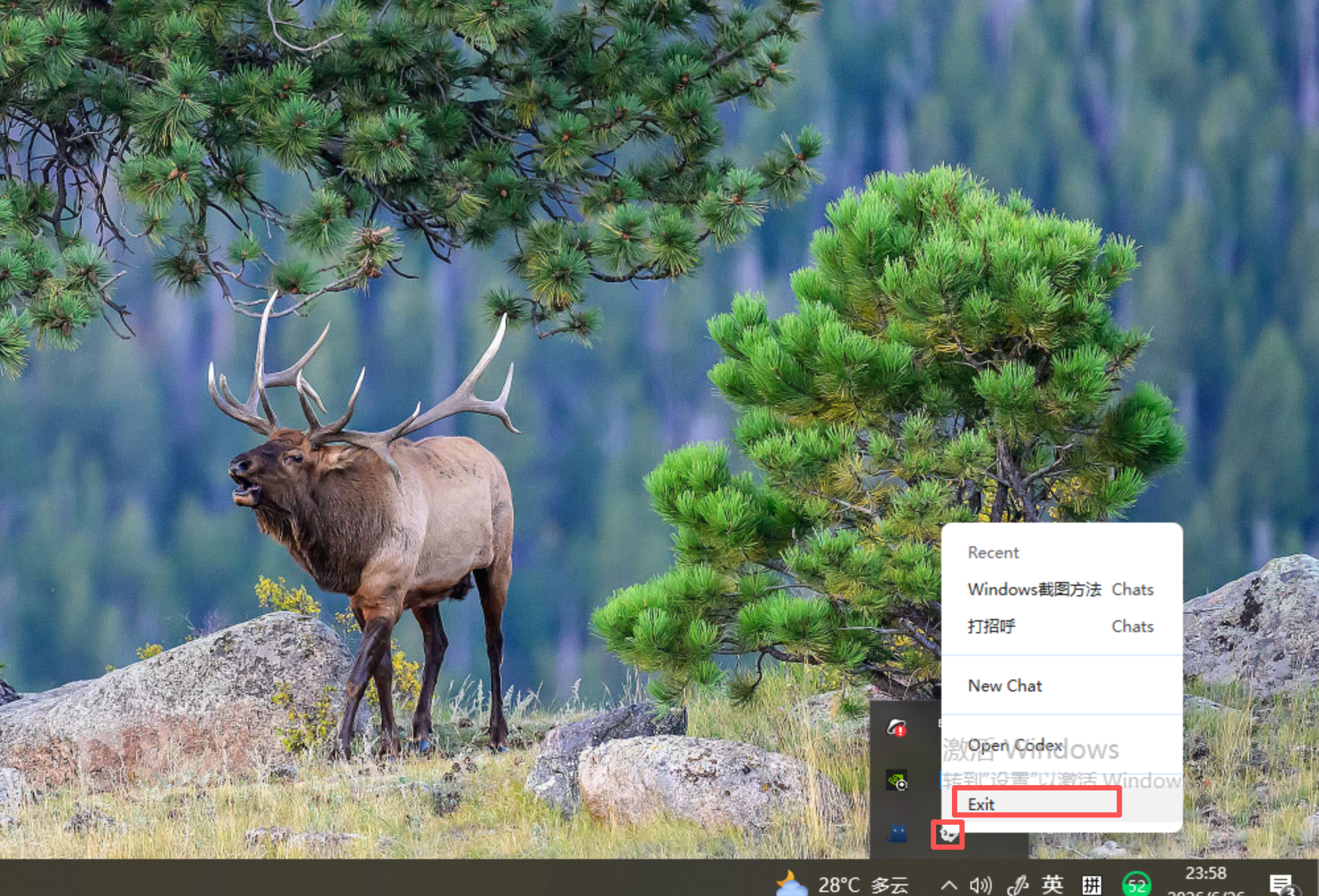
After installation, Codex may start automatically. Quit Codex first so the new PrimeRouter config can be loaded cleanly later.
2. Run the Windows setup script
Download the Windows PowerShell setup script.
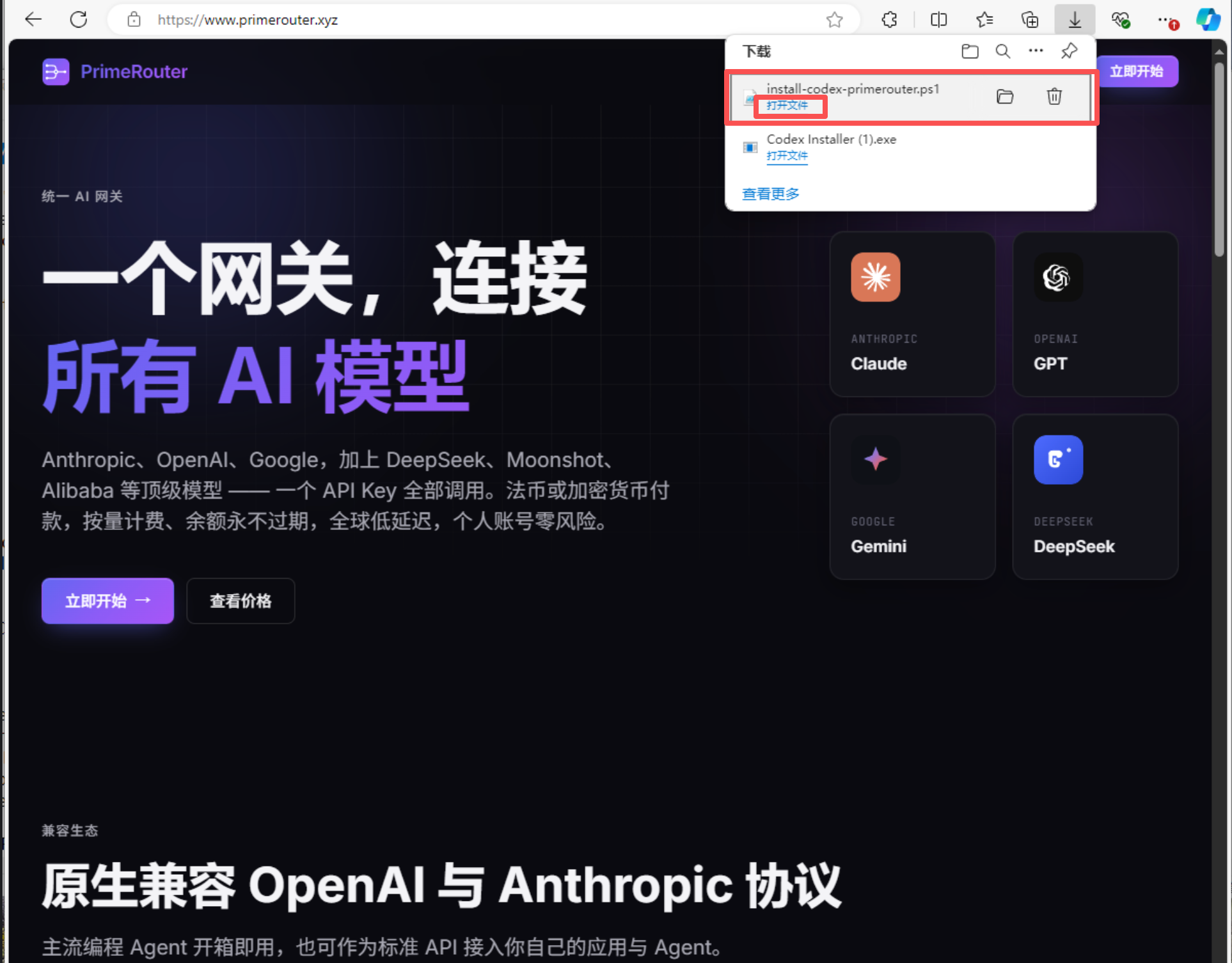
After downloading, right-click the script and choose Run with PowerShell.
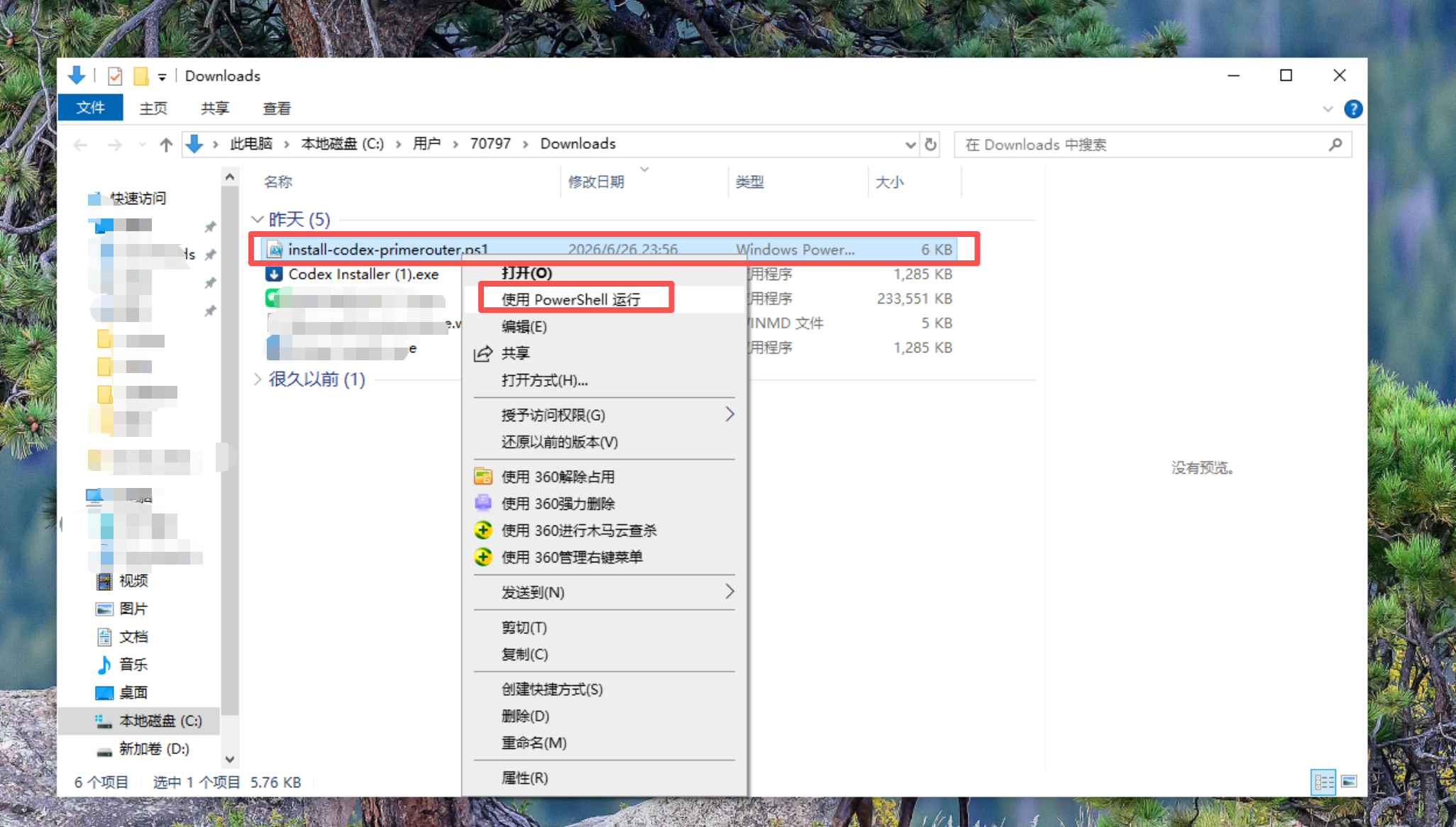
PowerShell opens the interactive setup flow.
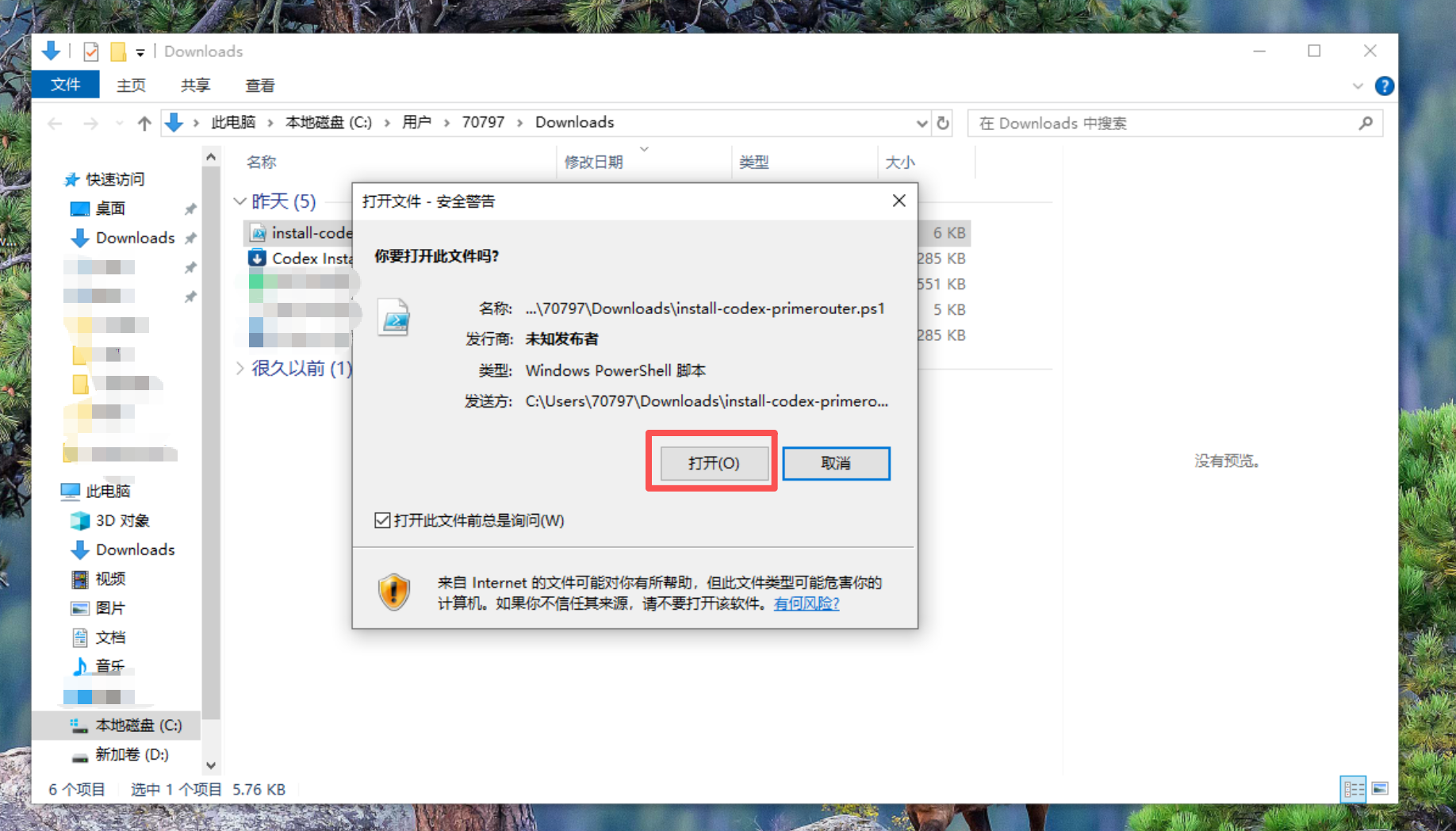
You can also run the script from PowerShell manually:
powershell -ExecutionPolicy Bypass -File .\codex.ps13. Create a PrimeRouter token
When the script asks for a PrimeRouter token, open Console Tokens.
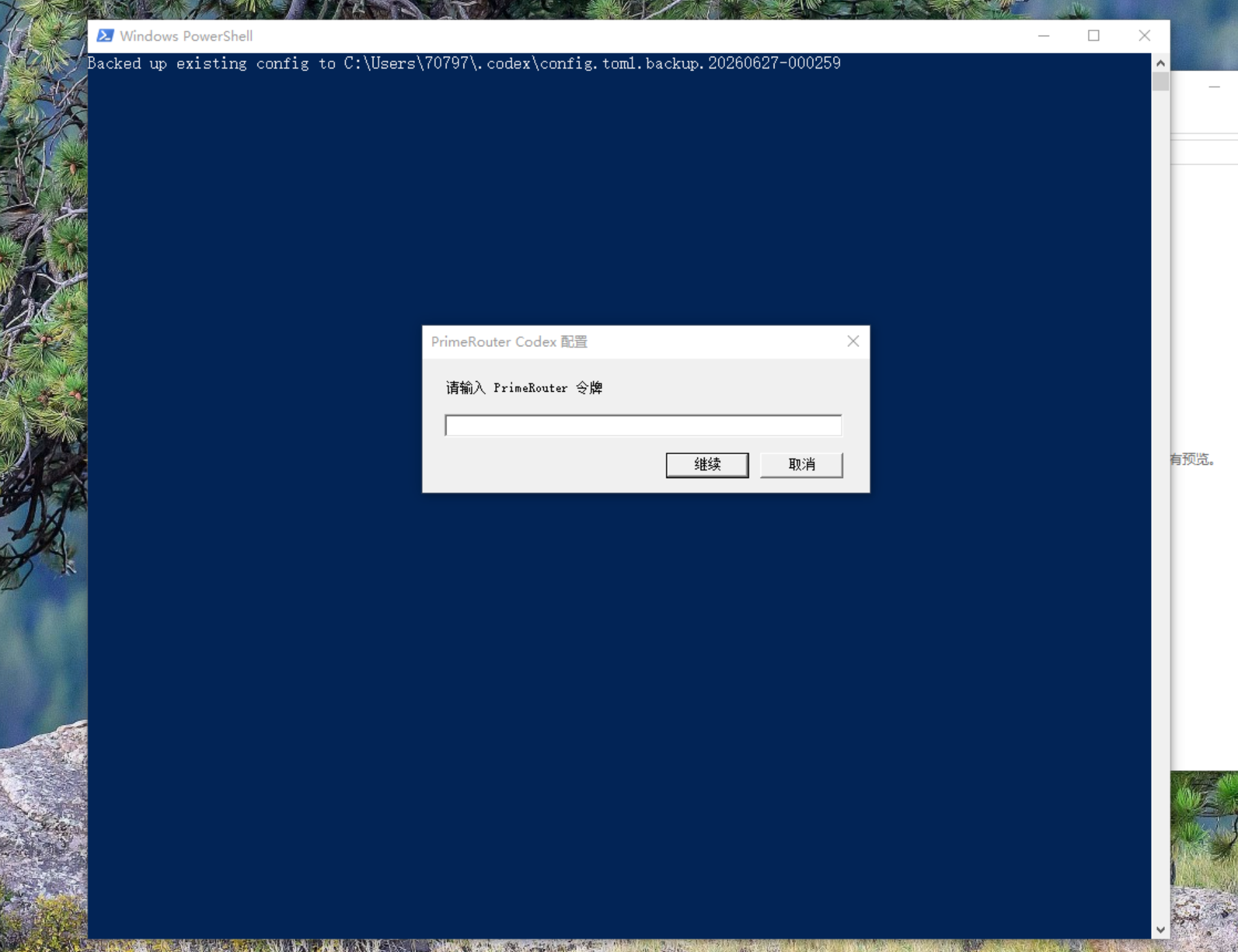
Create a dedicated token for Codex. This makes it easier to inspect logs, restrict models, or disable Codex access separately later.
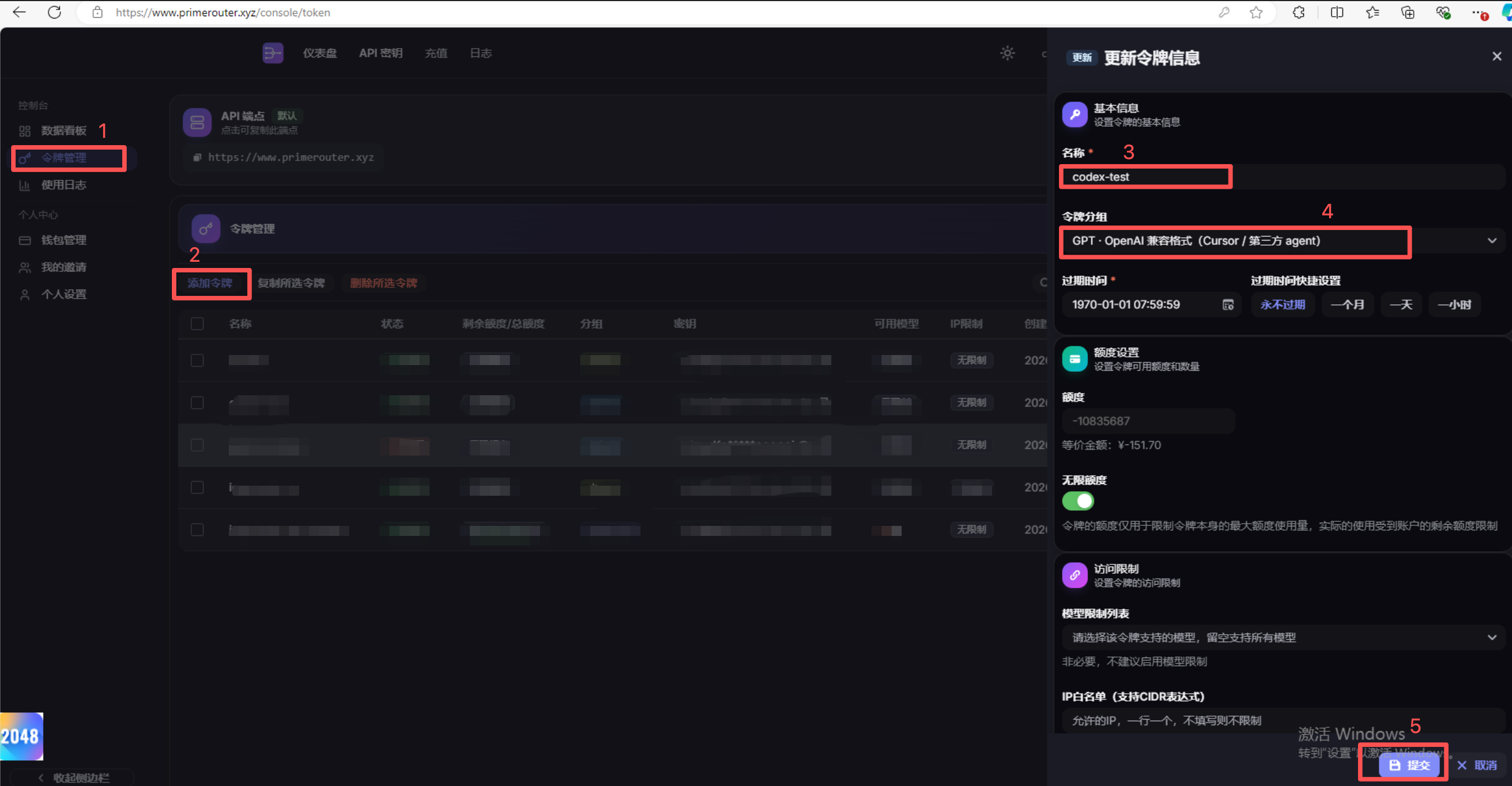
Copy the new token. The full token is shown only once, so store it safely.
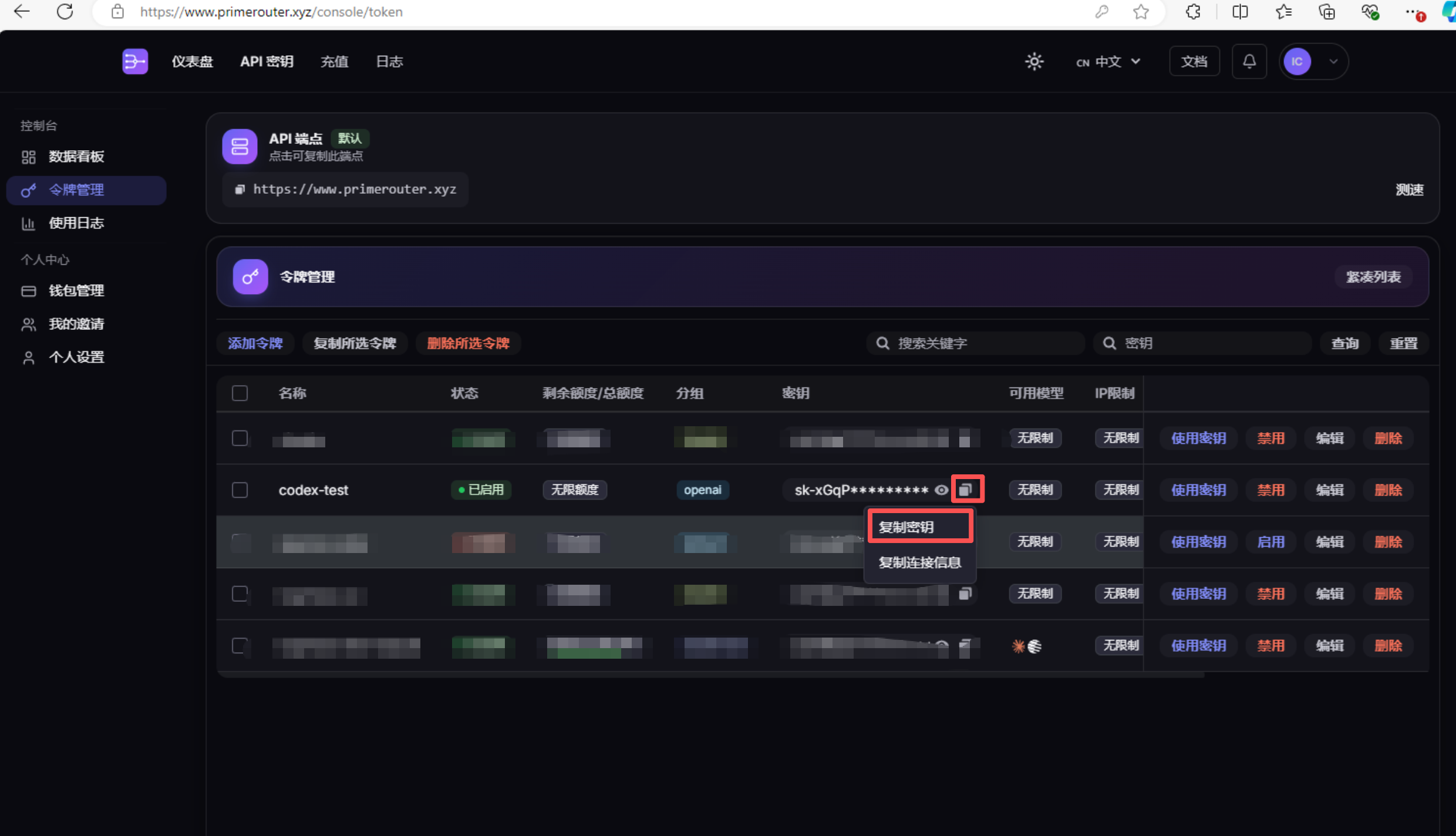
4. Enter the token and write config
Return to the PowerShell window, paste the PrimeRouter token, and press Enter.
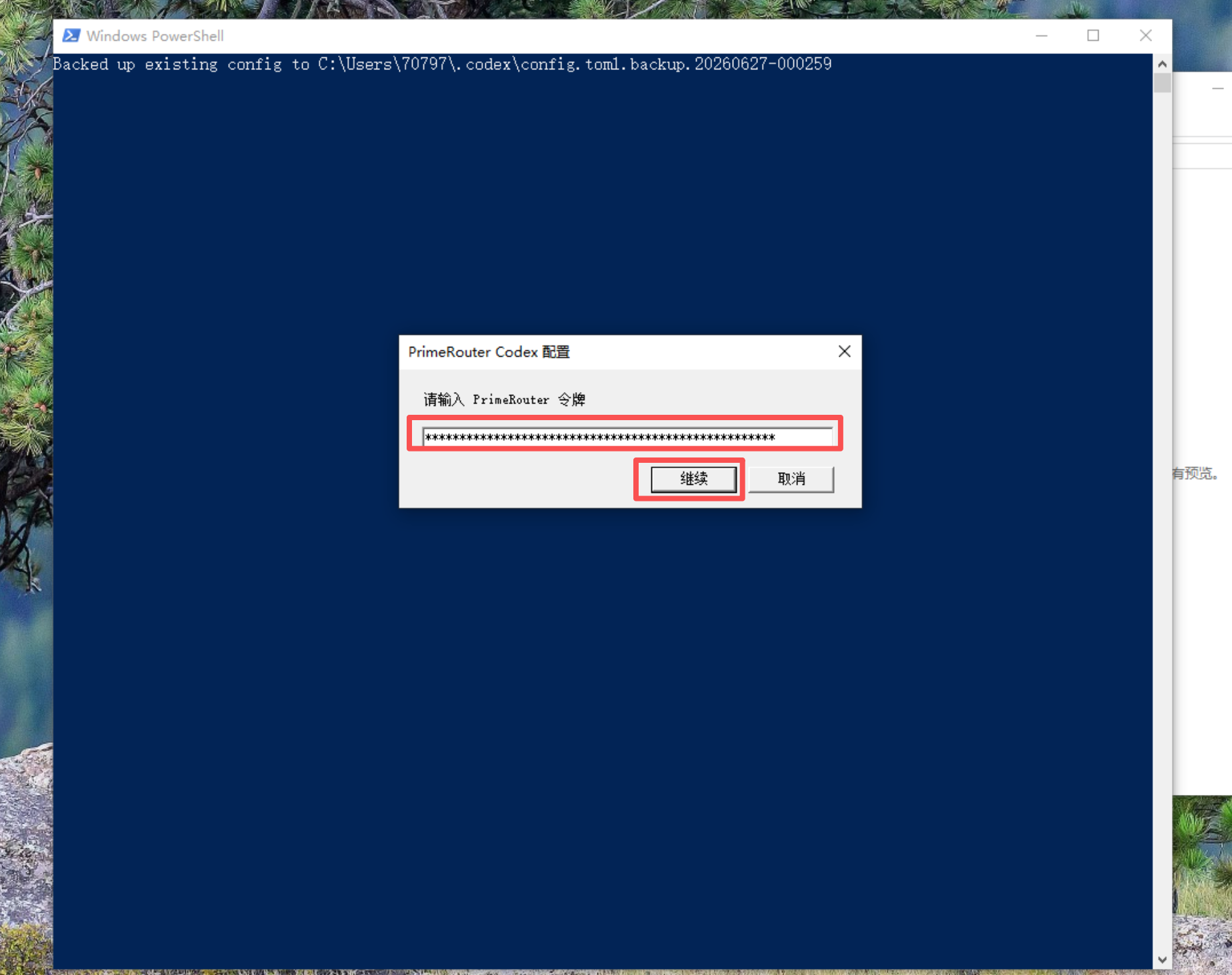
The script writes the Codex config automatically. After it completes, fully quit Codex and open it again.
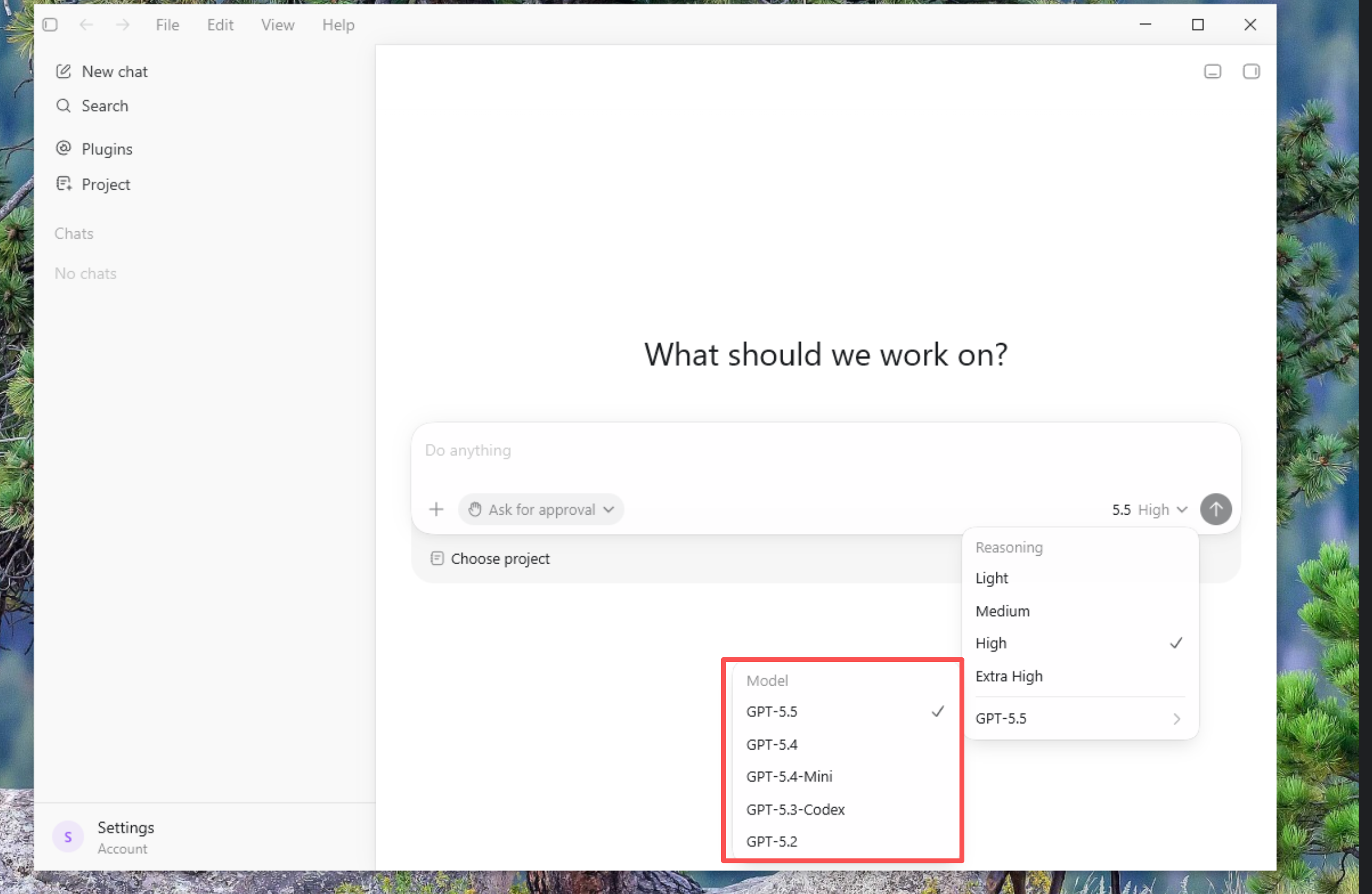
5. Choose a model in Codex
After reopening Codex, follow the UI prompts to enter the model setup or login flow.
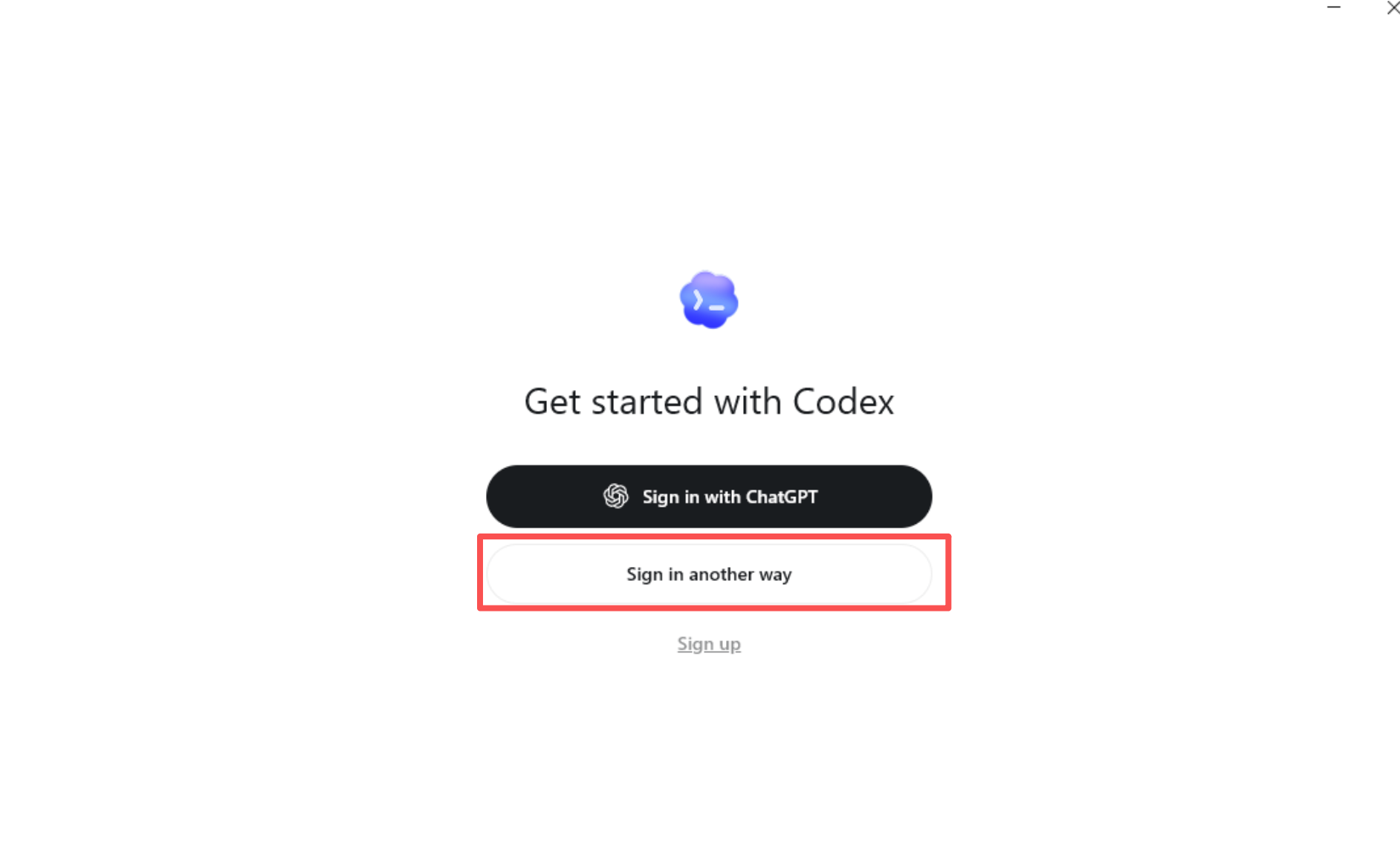
If Codex asks for a key again, enter the PrimeRouter token you just created.
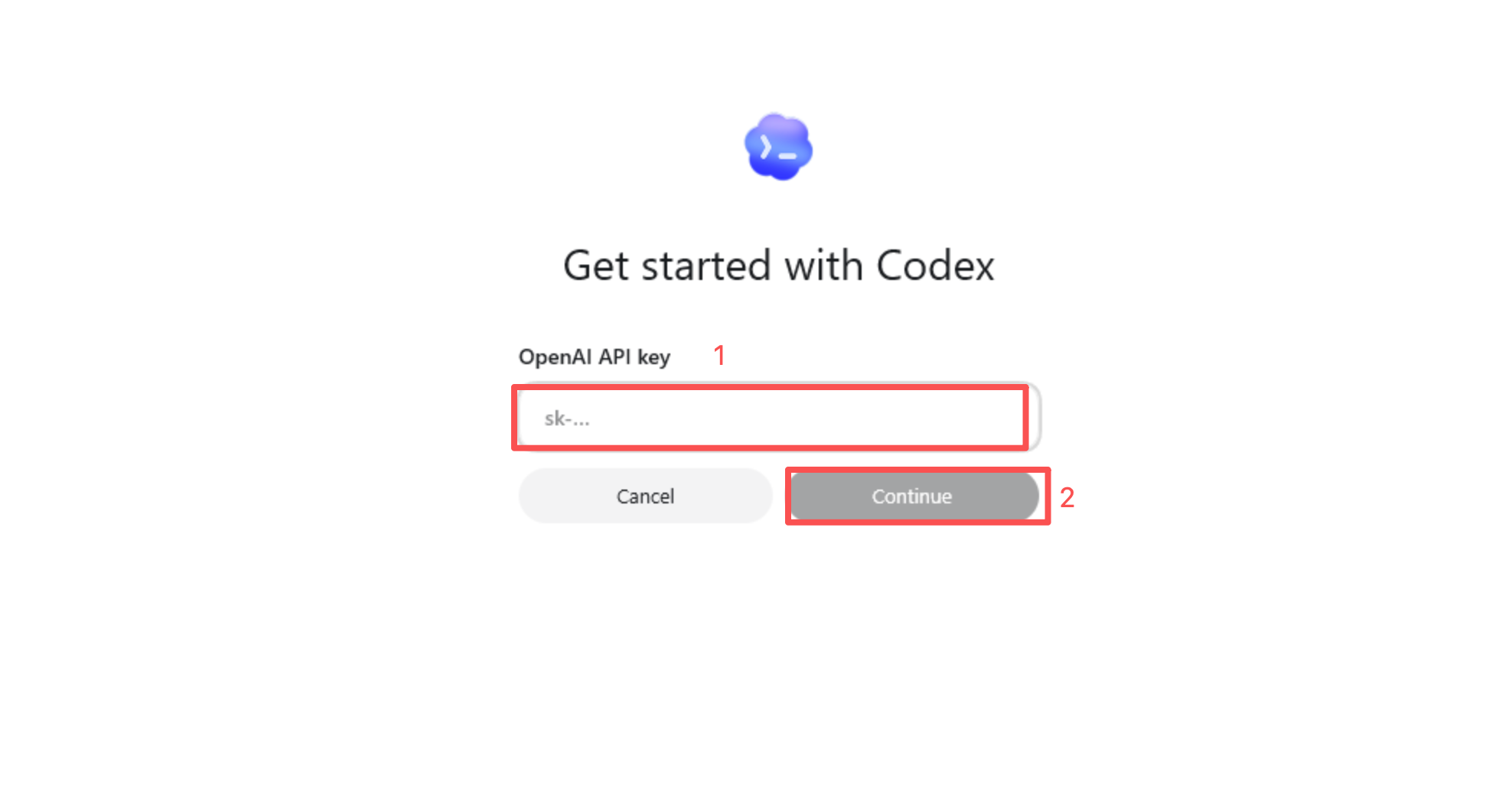
Choose a model. The example uses gpt-5.5, but you can choose any available model in your PrimeRouter console.
6. Verify the setup
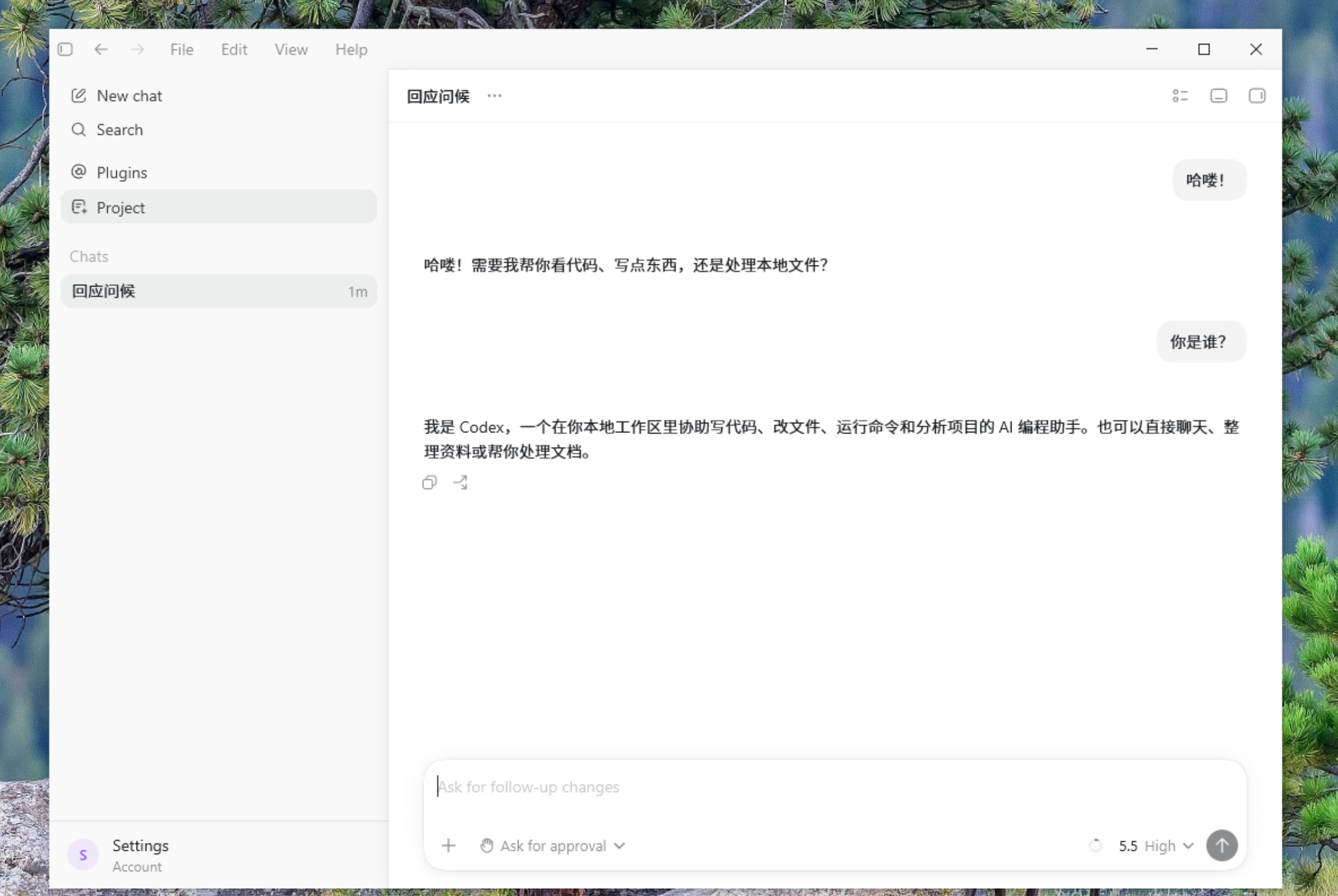
Send a simple question or coding task in Codex. If Codex responds normally, Windows is now connected through PrimeRouter.
macOS Flow
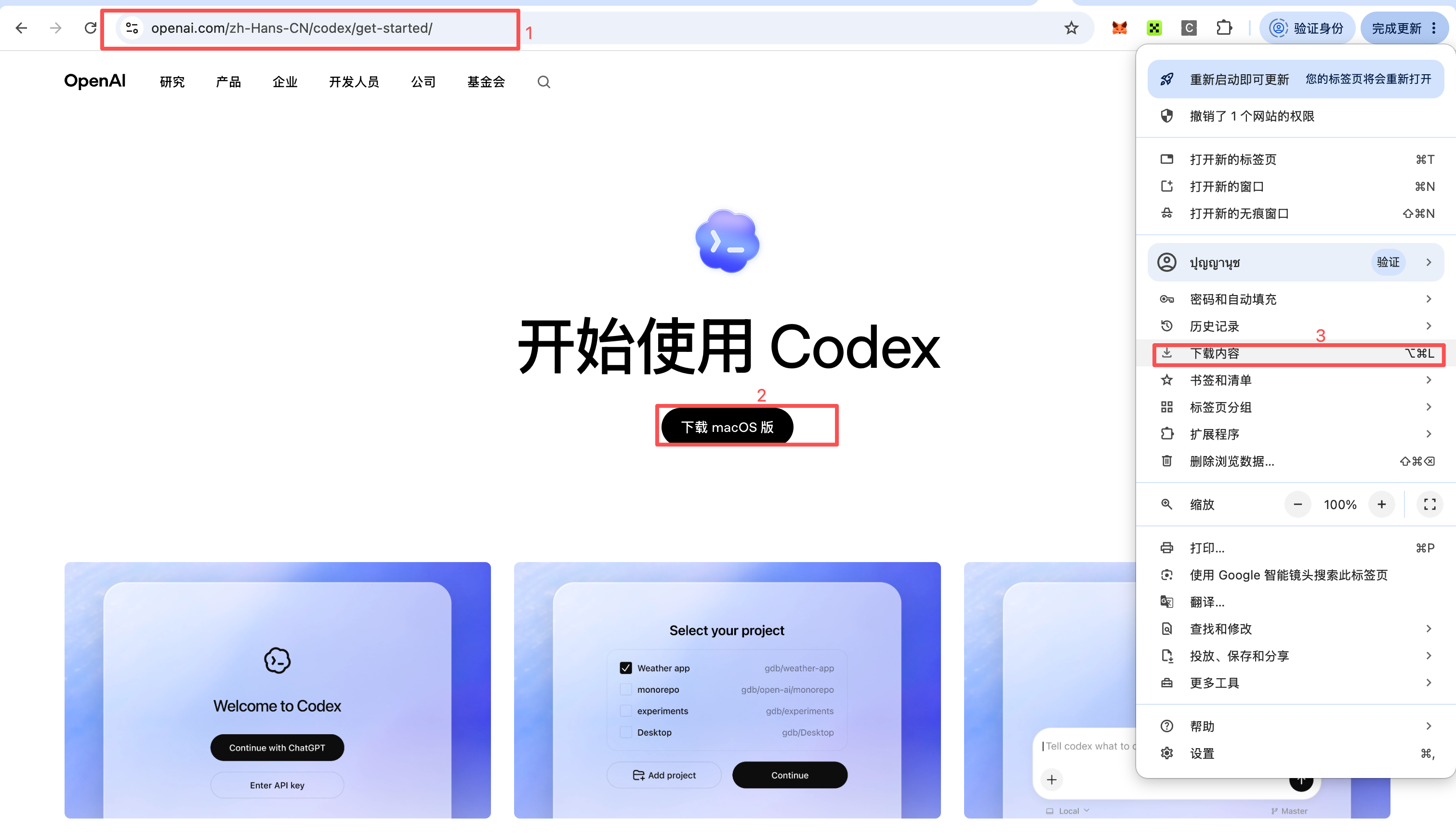
1. Download and install Codex
Open the OpenAI Codex get started page and download Codex.
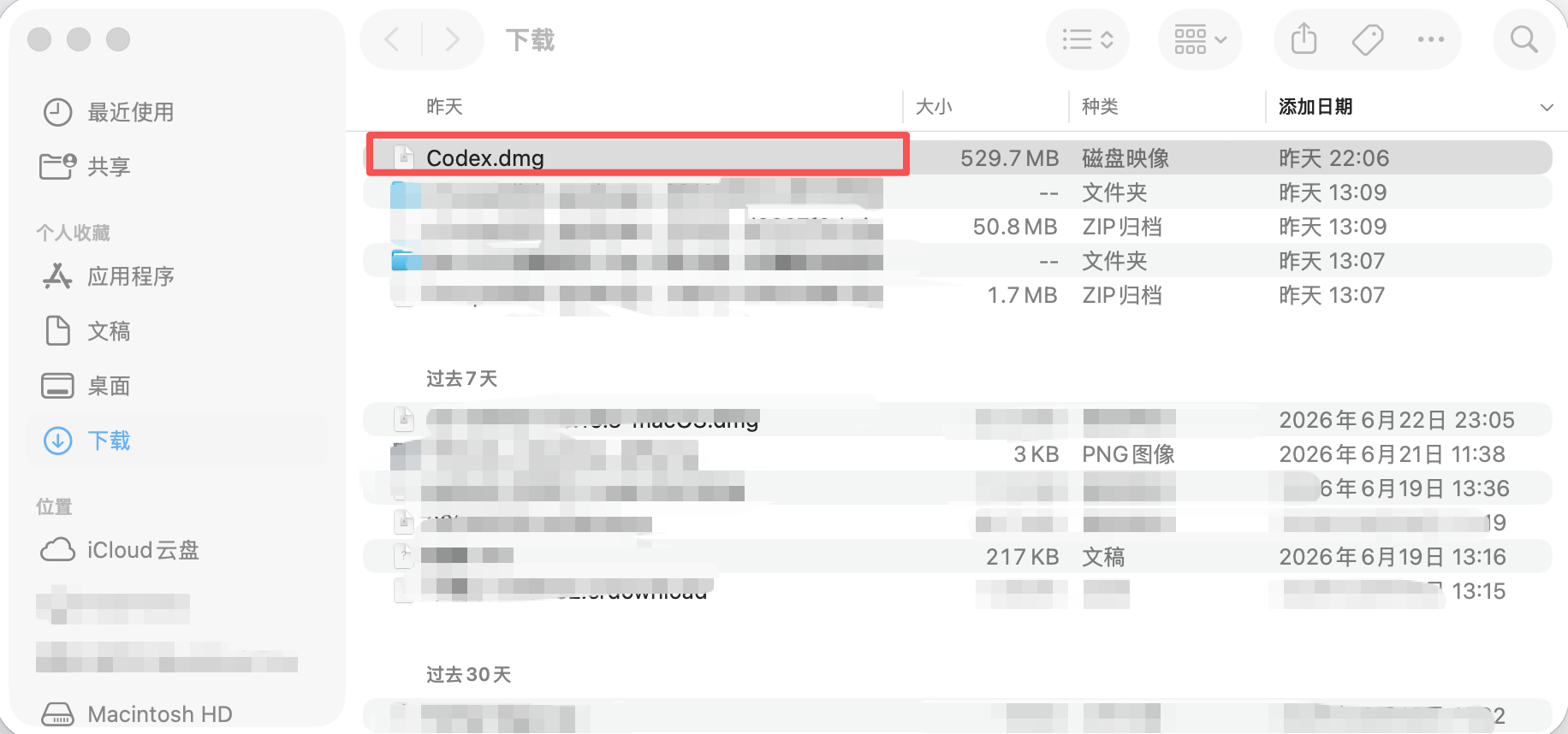
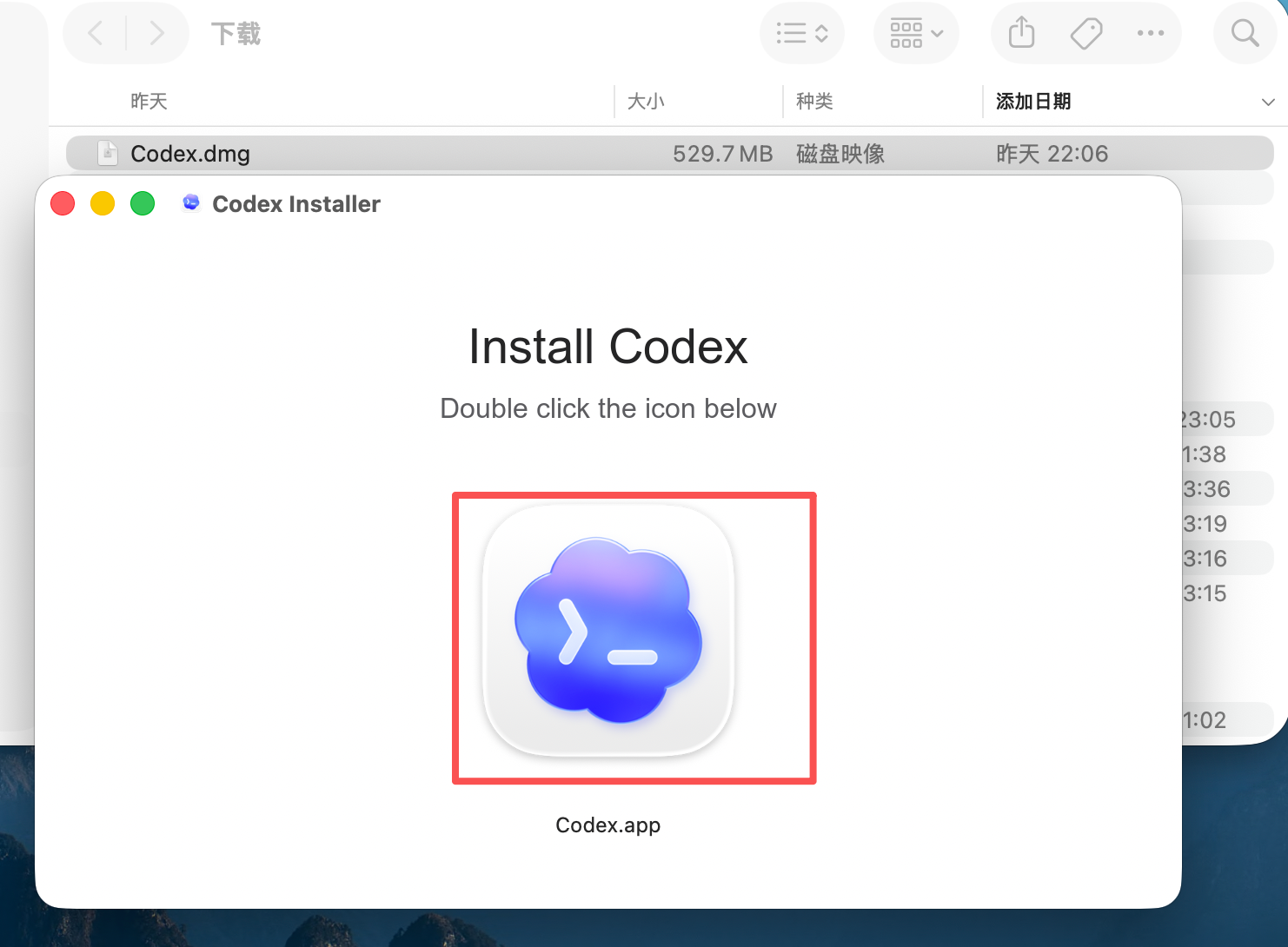
Open the downloaded installer and complete the installation.
2. Download and run the macOS setup script
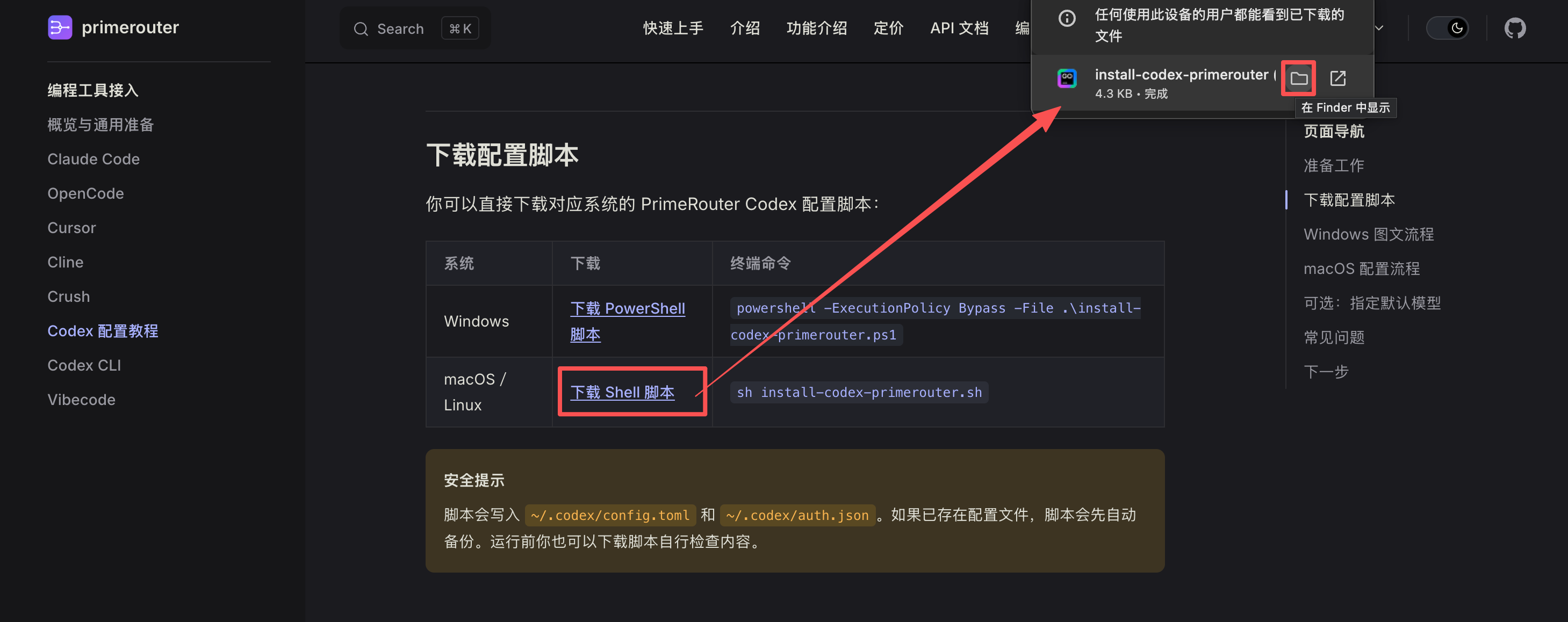
Download the macOS / Linux setup script, then open the download folder.
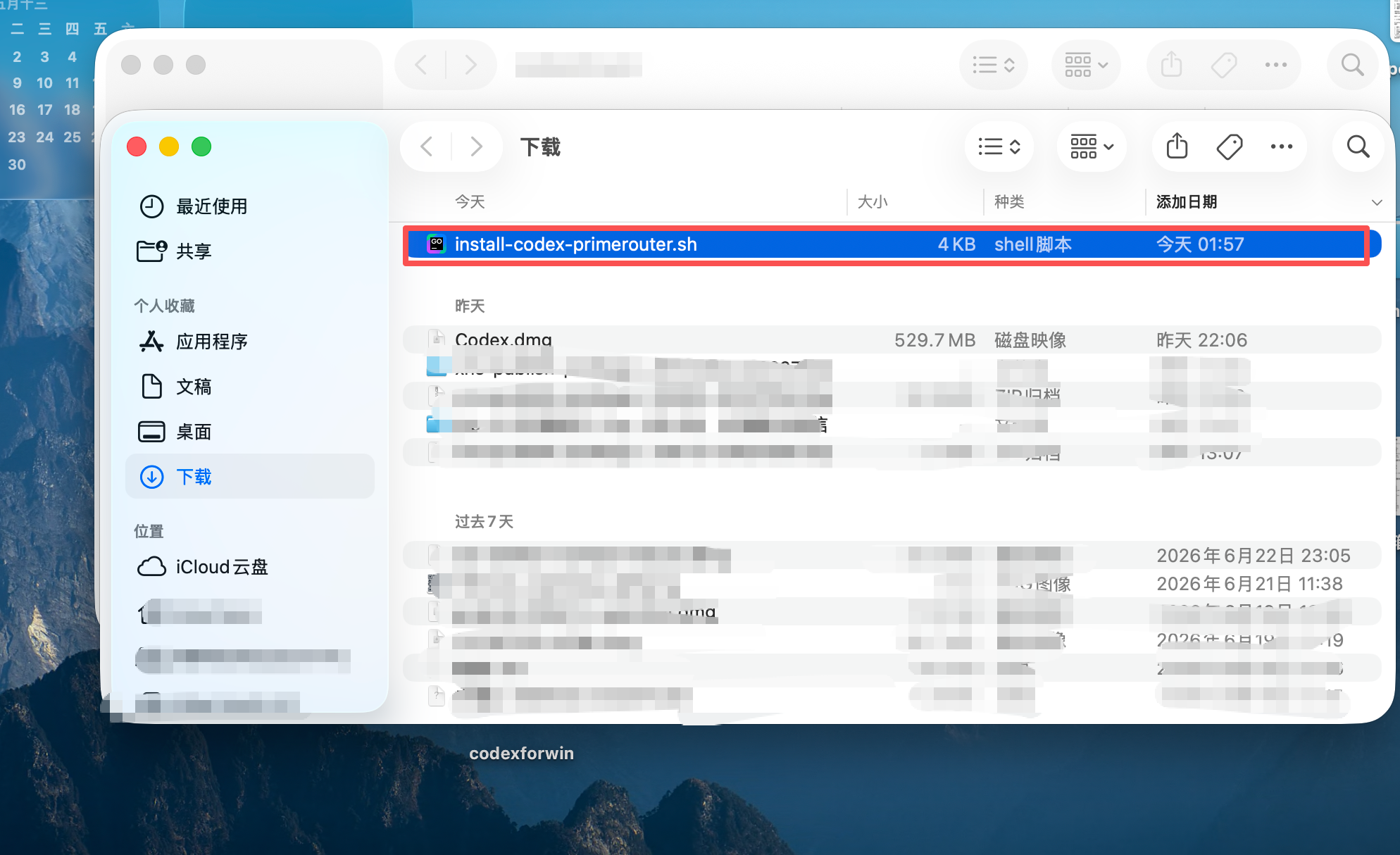
Confirm that codex.sh is in the folder.
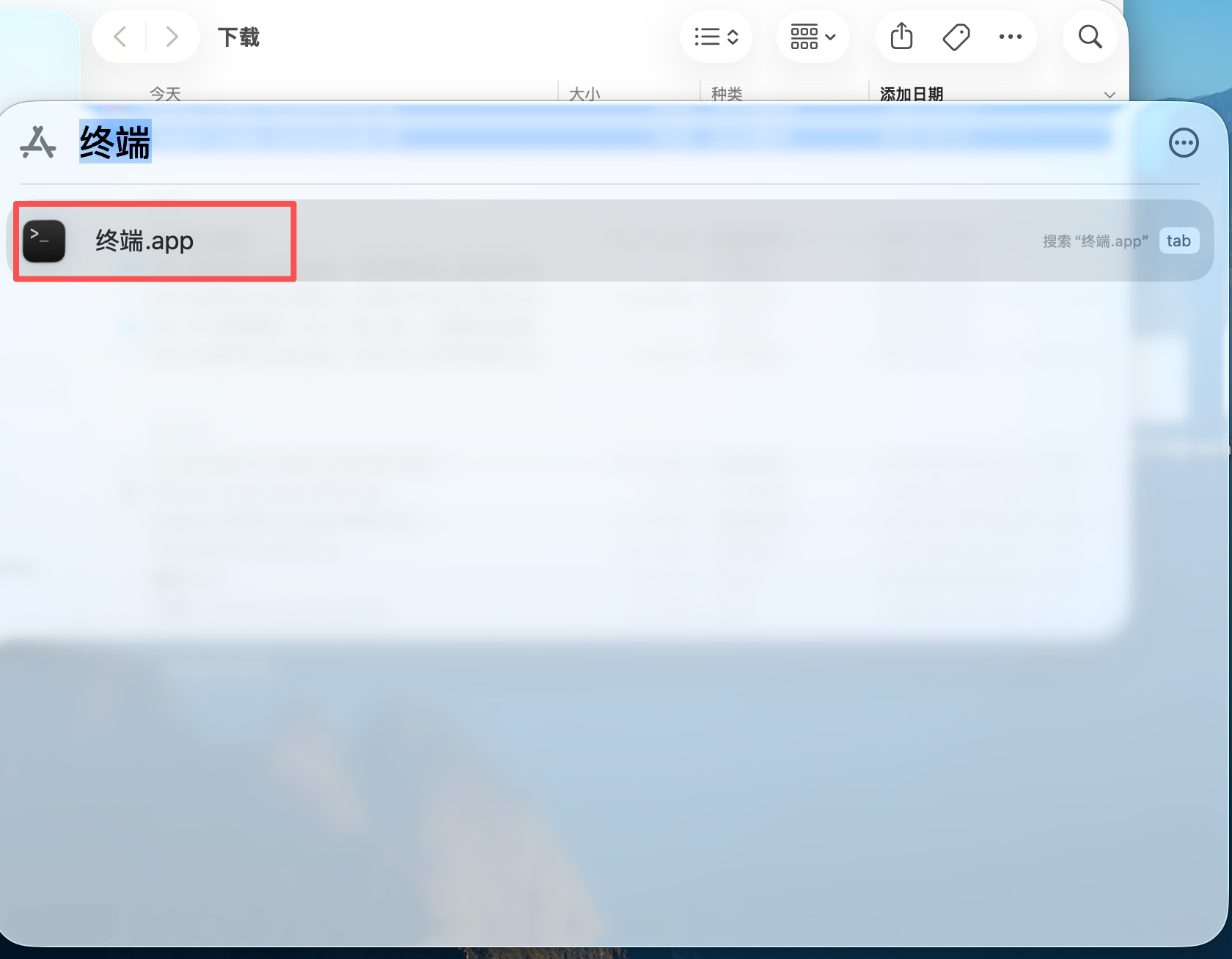
Open the macOS Terminal app.
Drag codex.sh into Terminal. Terminal will paste the script path, for example:
/Users/your-name/Downloads/codex.sh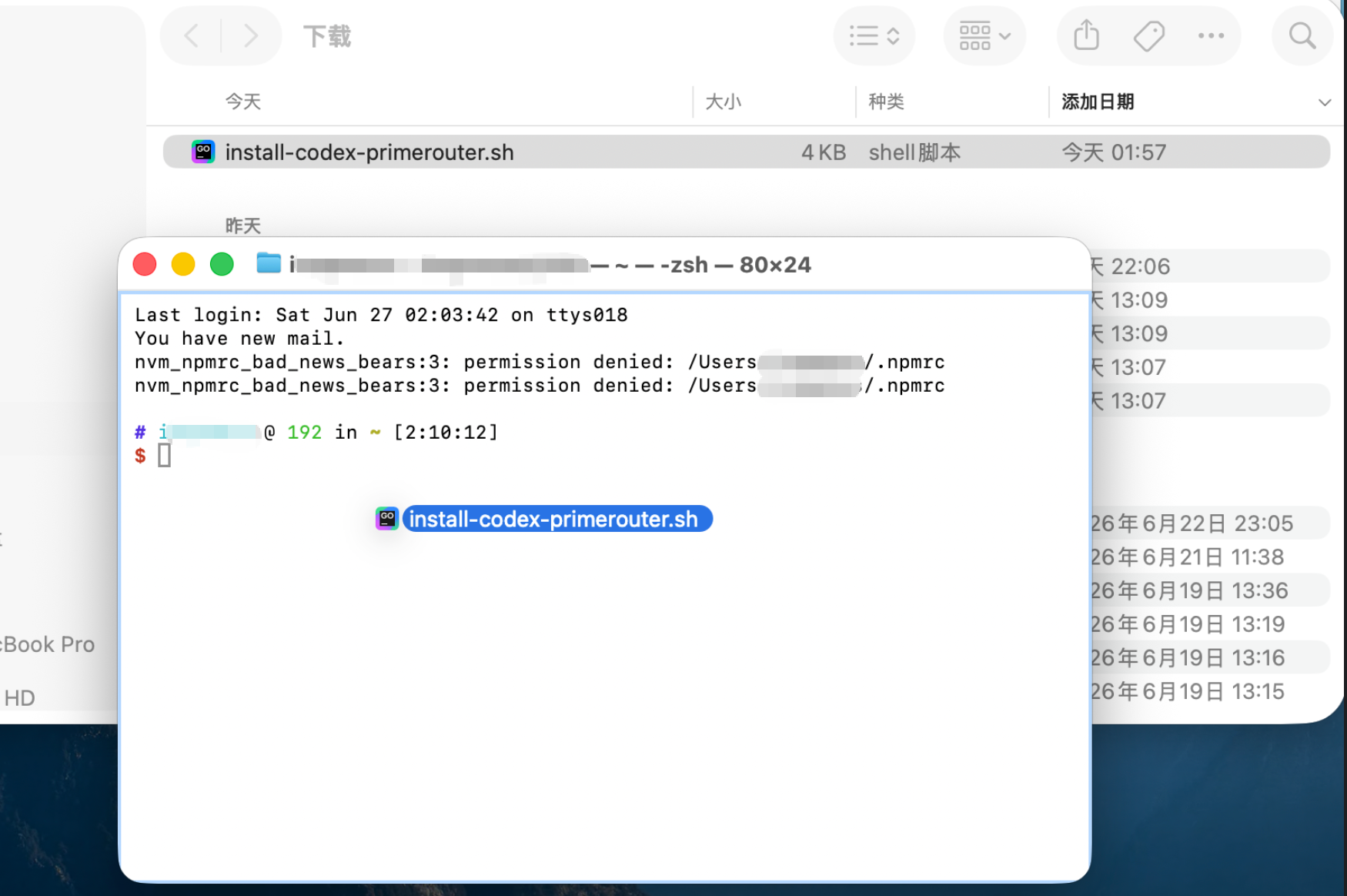
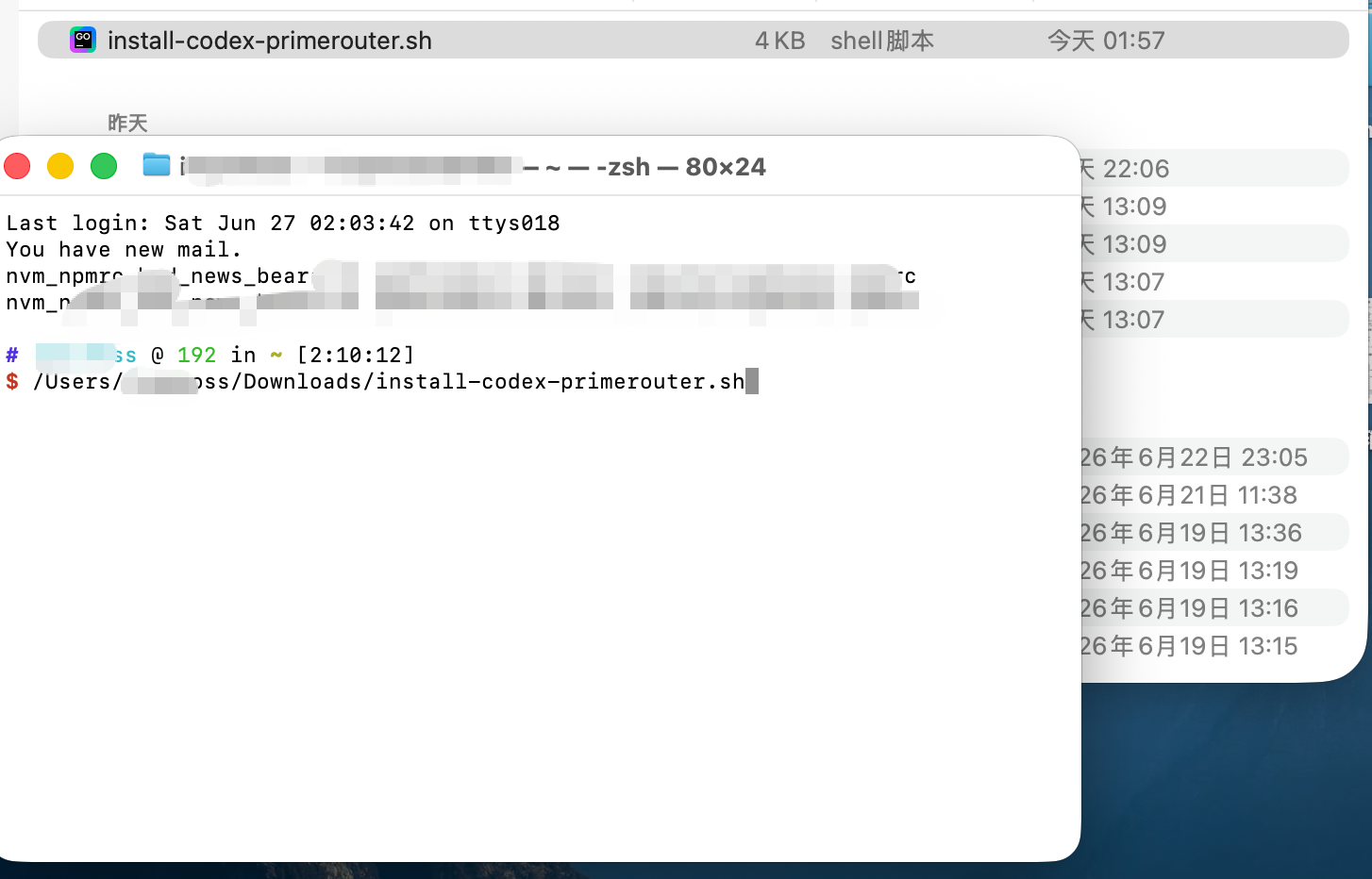
Grant execute permission:
chmod +x /Users/your-name/Downloads/codex.shThen run the script:
/Users/your-name/Downloads/codex.shThe script opens a system prompt for your PrimeRouter token. If a dialog is unavailable, it falls back to hidden terminal input.
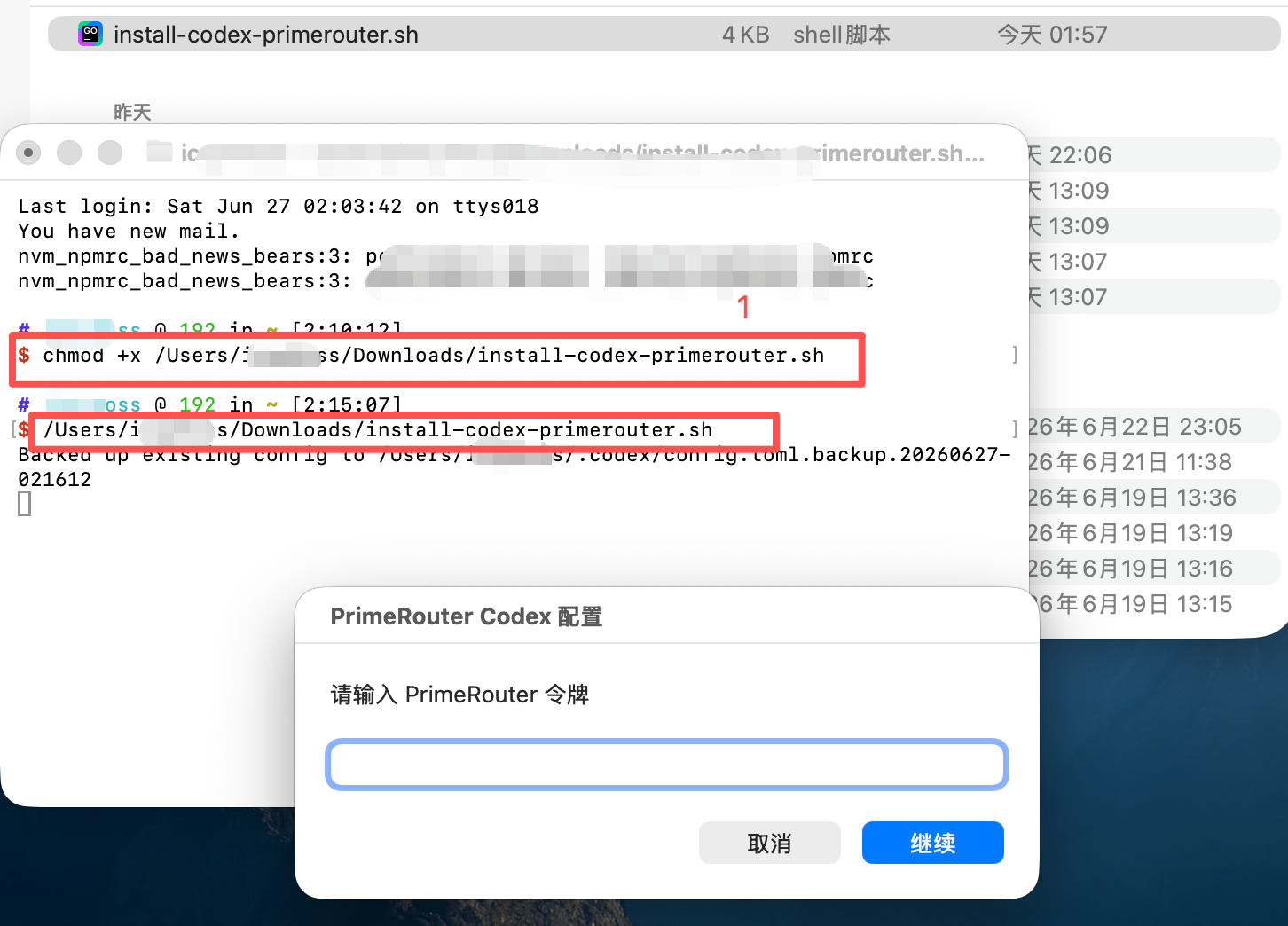
3. Create and enter a PrimeRouter token
Open Console Tokens and create a dedicated token for Codex.
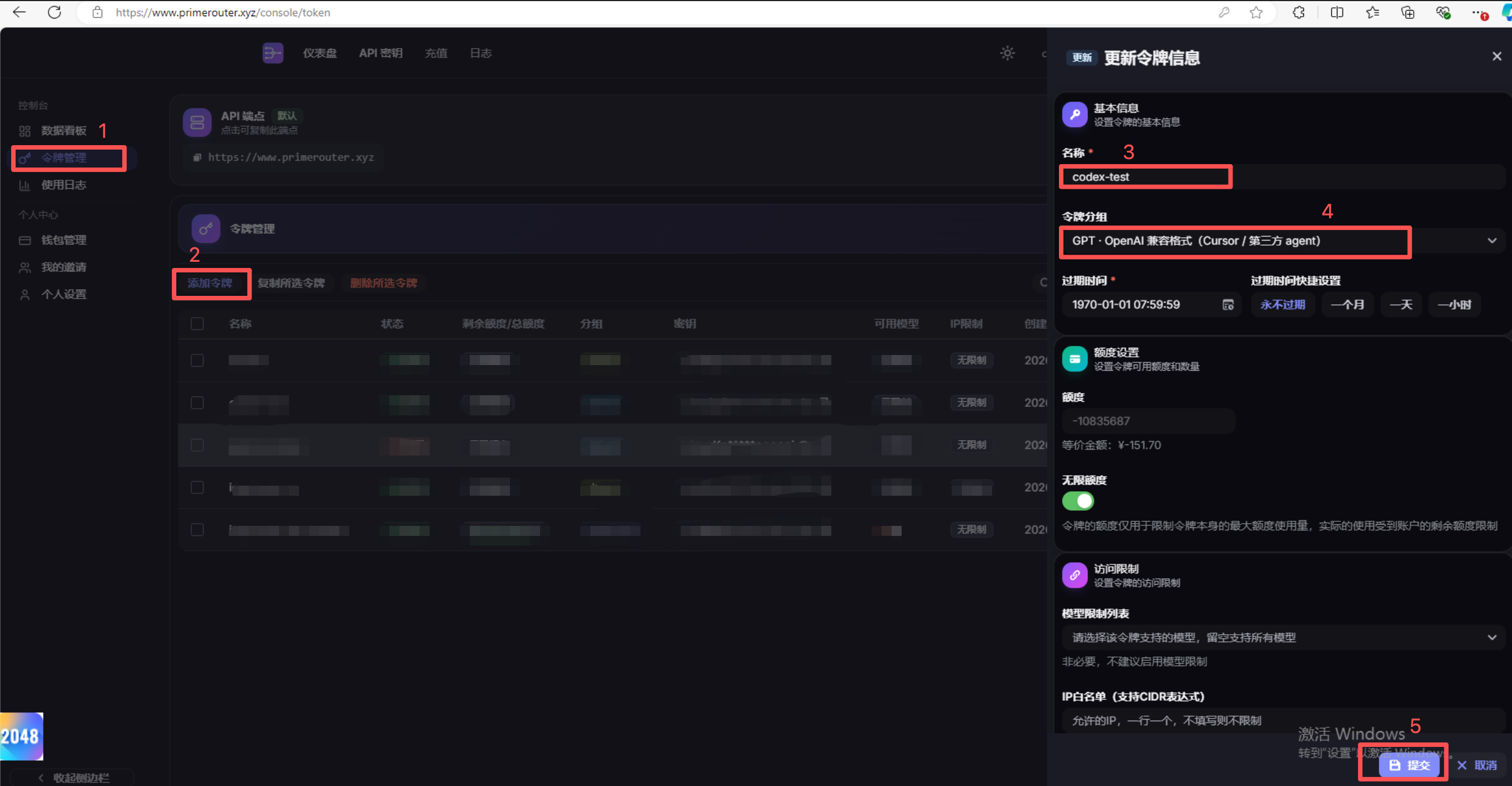
Copy the new token. The full token is shown only once, so store it safely.
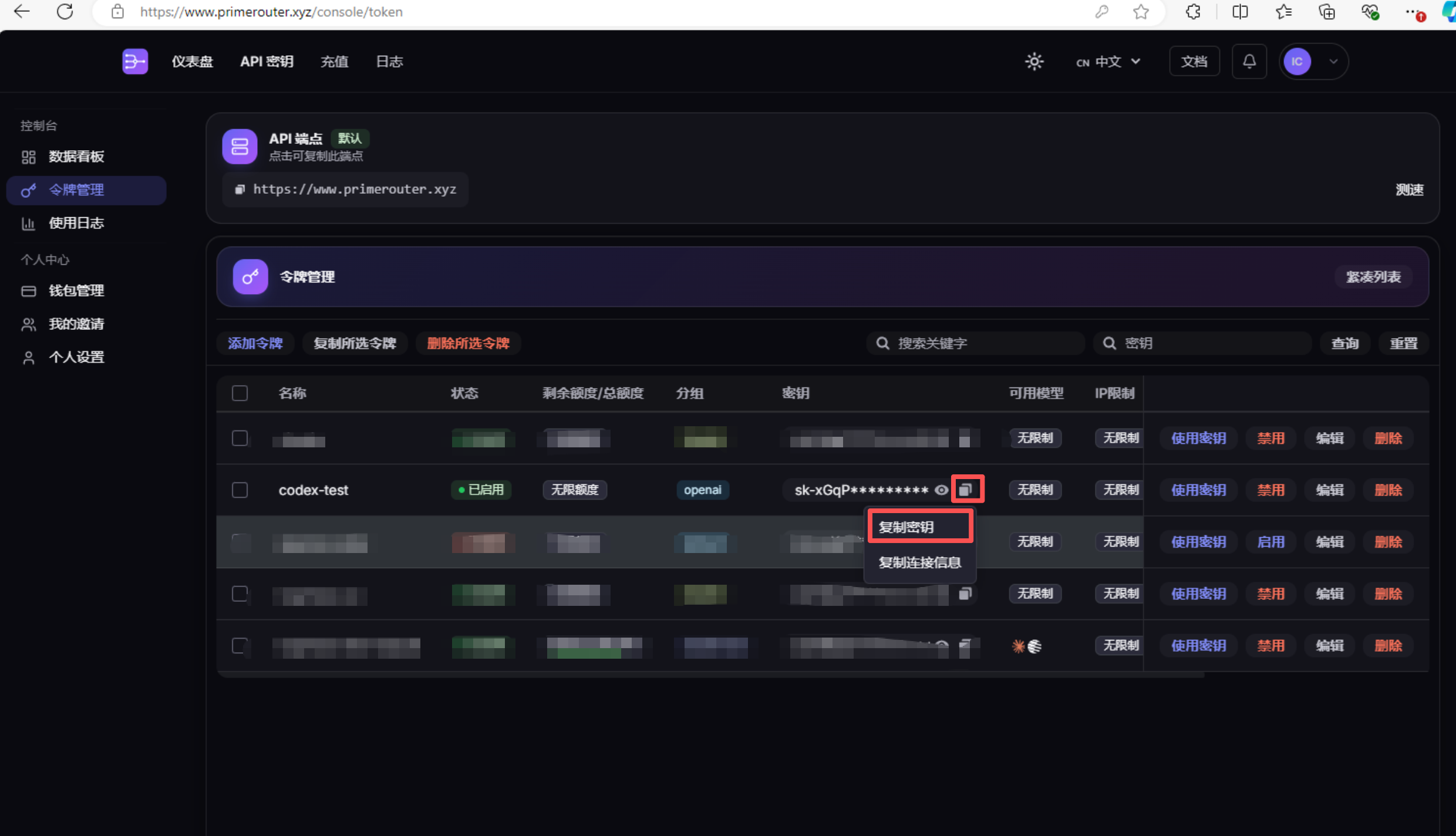
Paste the token into the prompt and continue.
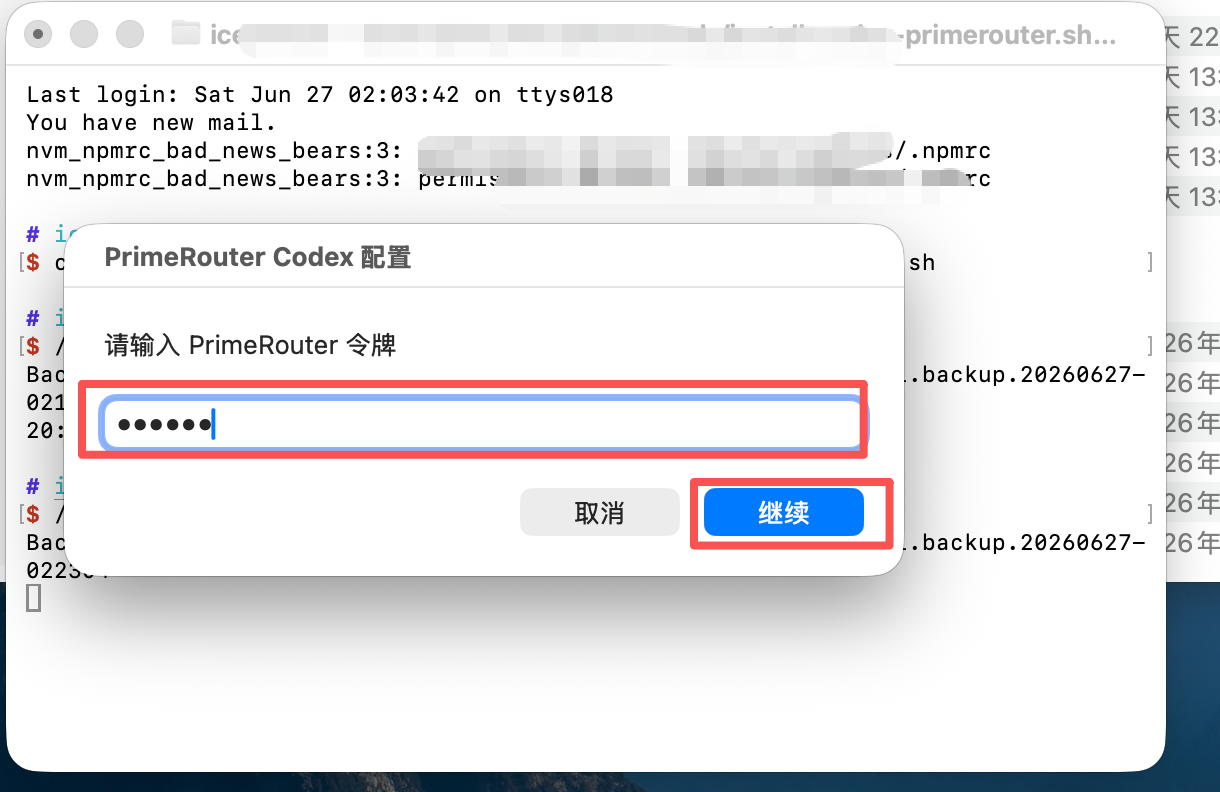
When you see the success message, the PrimeRouter config has been written to Codex.
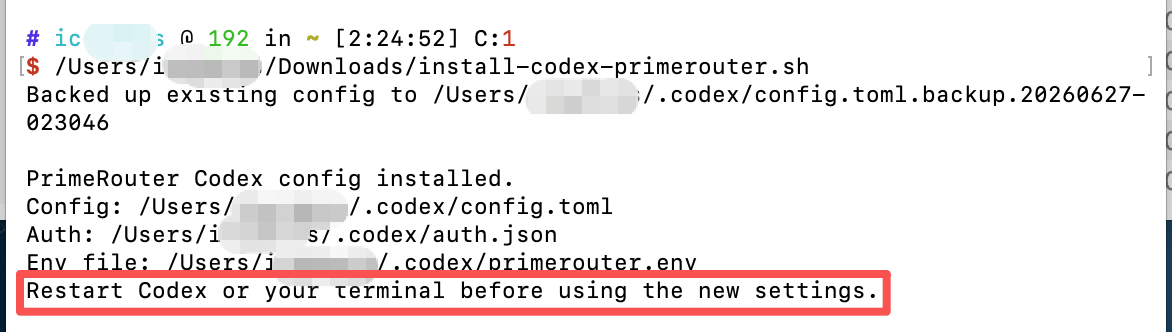
4. Restart Codex and choose a model
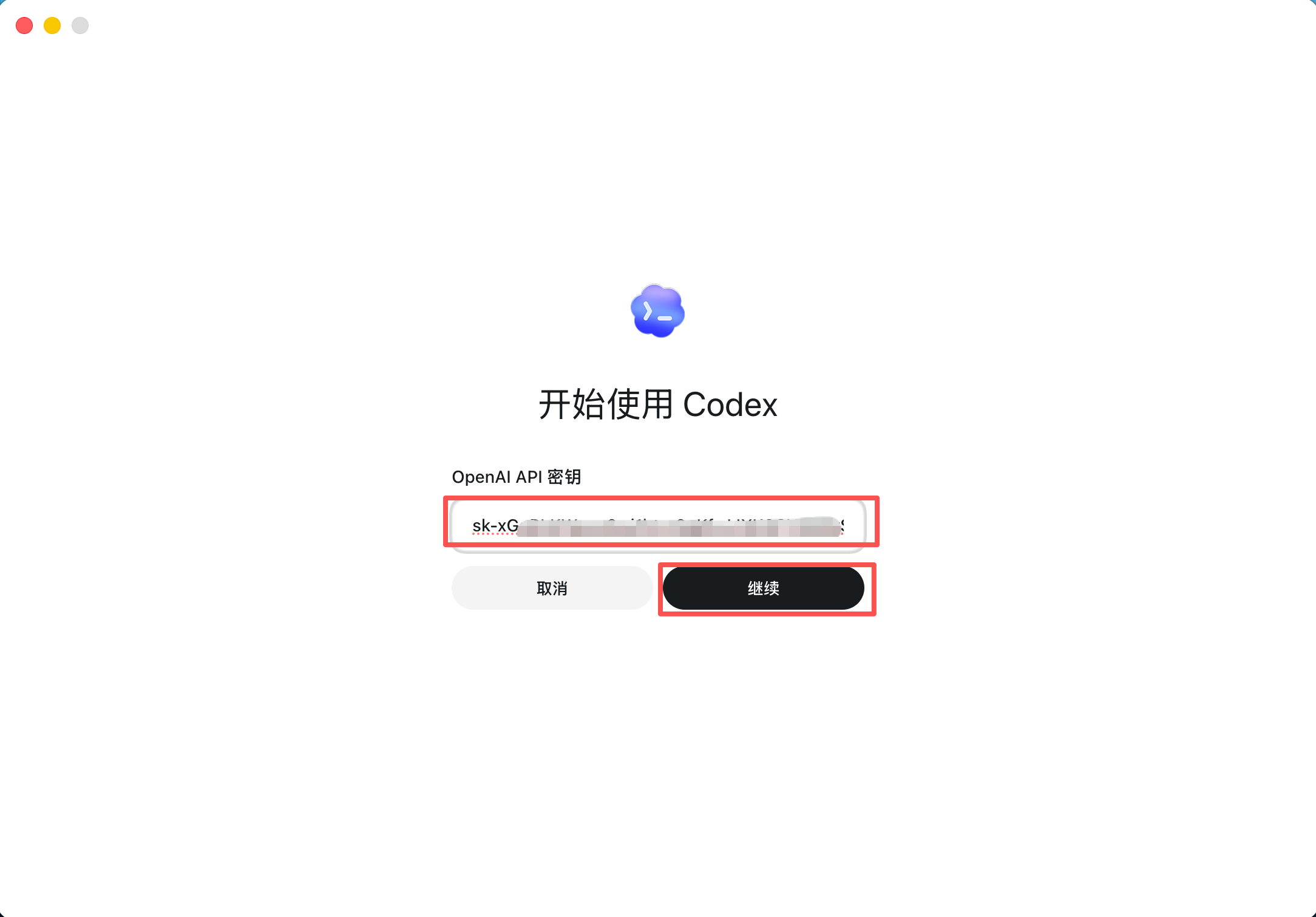
Restart Codex and follow the UI prompts.
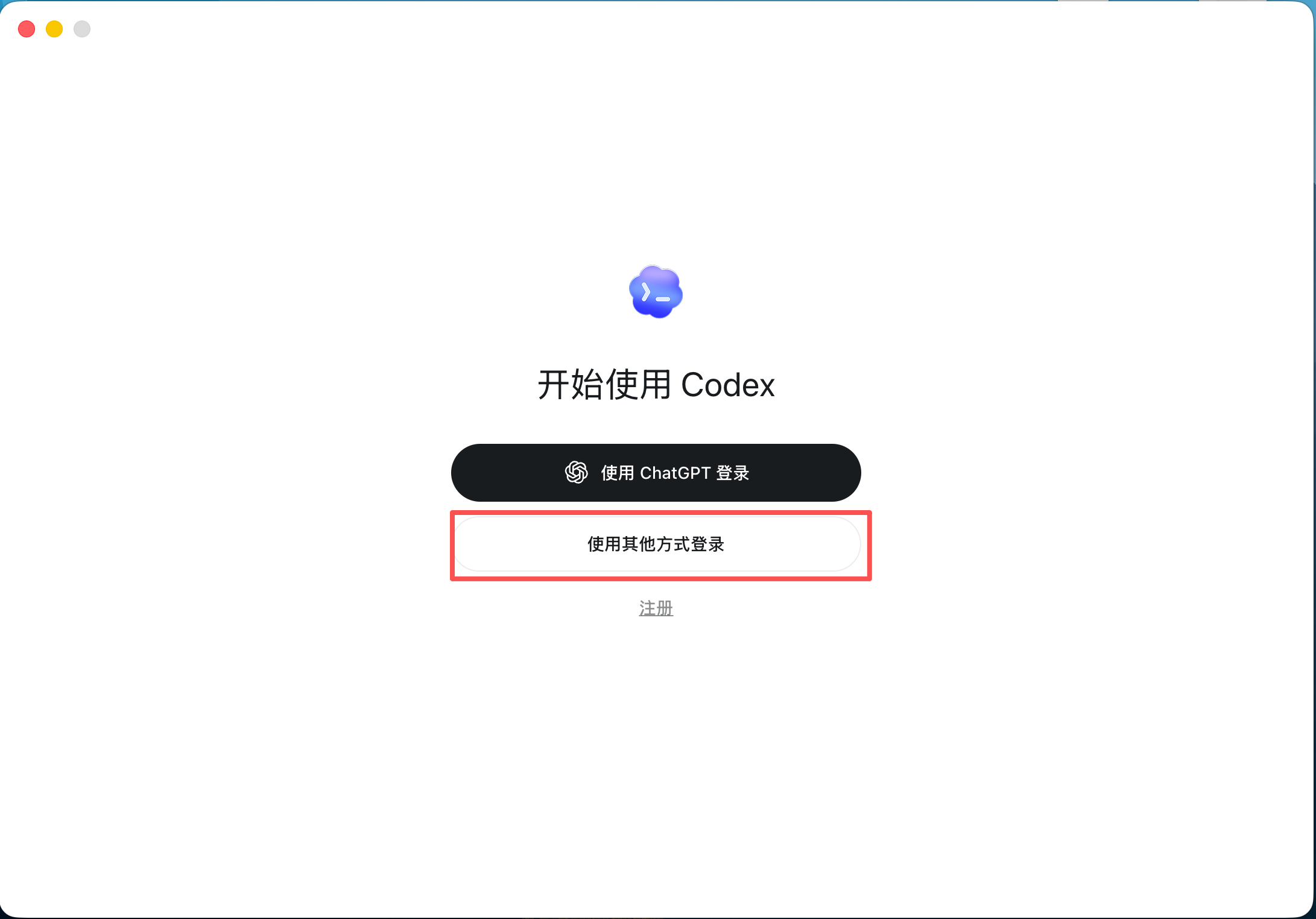
If Codex asks for a key again, enter the PrimeRouter token you just created.
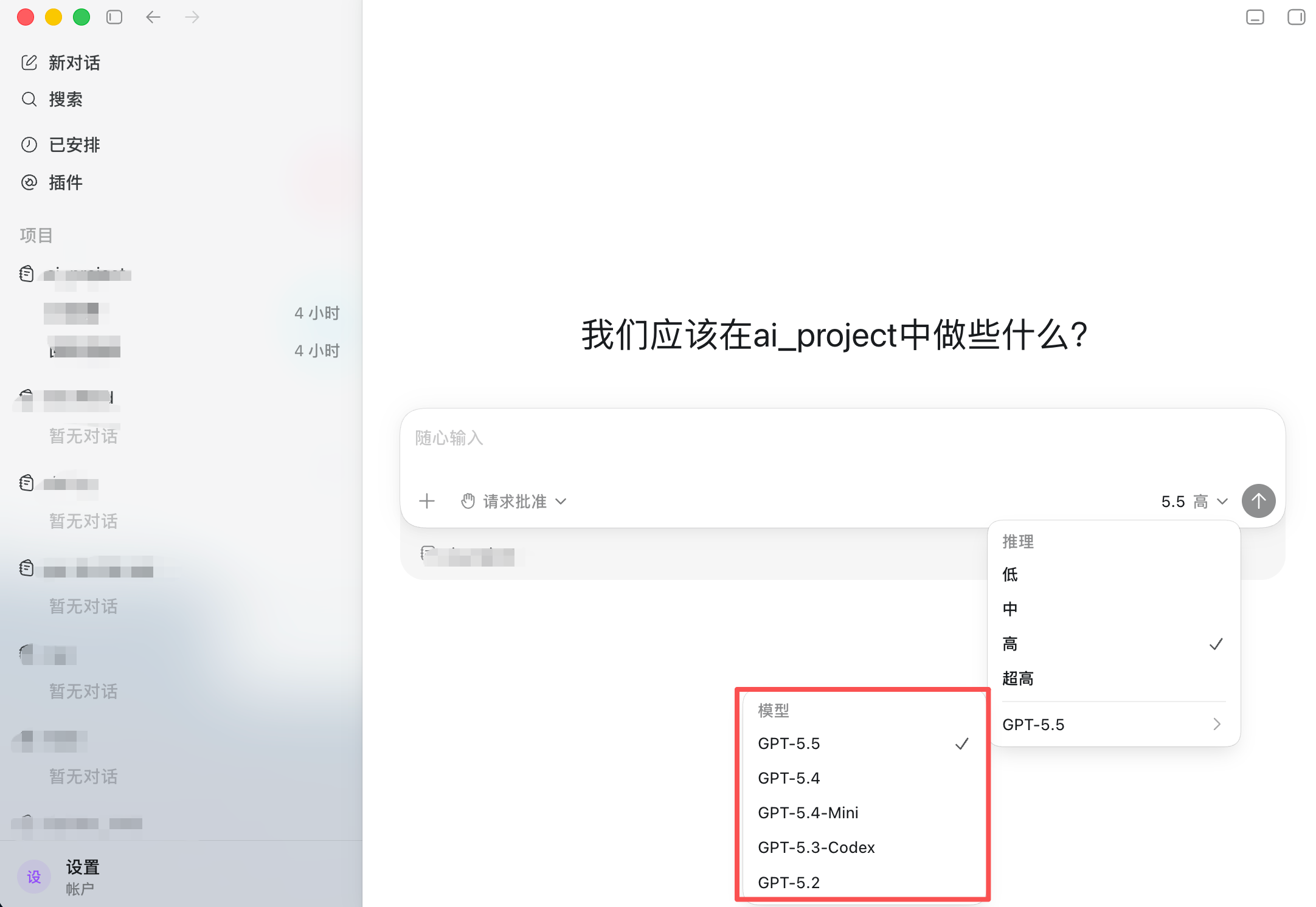
Choose a model. The example uses gpt-5.5, but you can choose any available model in your PrimeRouter console.
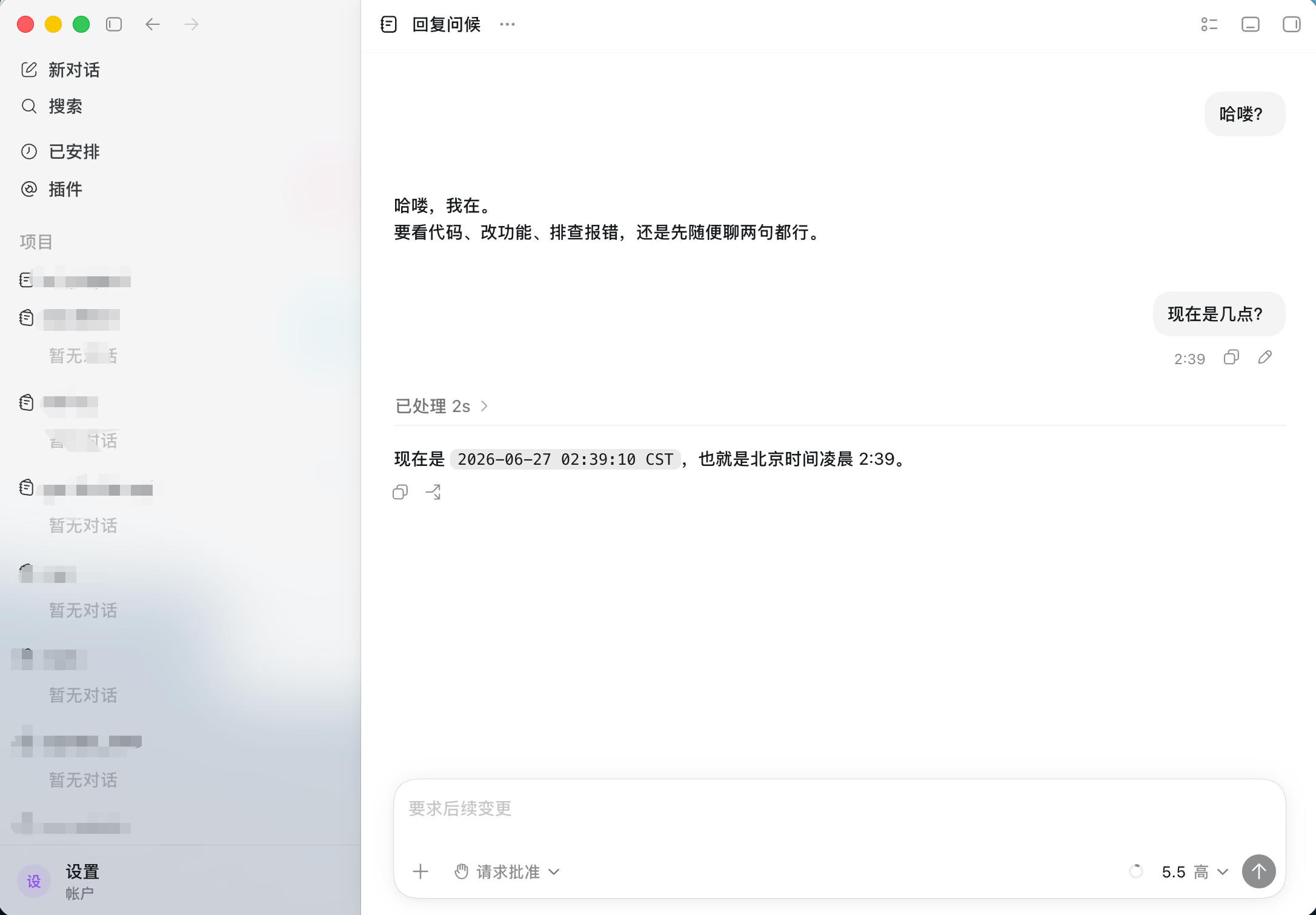
5. Verify the setup
Send a simple question or coding task in Codex. If Codex responds normally, macOS is now connected through PrimeRouter.
Optional: Choose a Default Model
The default model is gpt-5.6-sol. You can override it when running the script:
$env:PRIMEROUTER_MODEL = "gpt-5.4-mini"; irm https://primerouter.ai/install/codex.ps1 | iexPRIMEROUTER_MODEL=gpt-5.4-mini bash codex.shTroubleshooting
| Symptom | Cause | Fix |
|---|---|---|
| Invalid key | Token was copied incorrectly, disabled, or incomplete | Create a new PrimeRouter token and copy the full value |
| Model not found | Model id is wrong or unavailable to the token group | Check available models in the PrimeRouter console |
| Script cannot run | Windows PowerShell execution policy blocks it | Use Run with PowerShell or ExecutionPolicy Bypass |
| Codex still asks for setup | Codex was not restarted or config was not reloaded | Fully quit and reopen Codex |